For: Account owner · Time: about 5 minutes
You need: to be the account owner
Account settings control company-wide basics. Only the account owner can see and change this page: go to Settings → System Settings → Account Settings.
| Setting | What it does |
|---|---|
| Company Name | The name shown in your header. |
| Company URL | Your account's web address. Change it if it was set to something generic when the account was created. |
| Account Owner | The one person who can change account settings. Reassign it before the current owner leaves, so the account is never left without one. |
| Weekdays | Your company's working hours for each day, which set everyone's default availability. See How to set global and custom availability. |
| Average Daily Capacity | The hours in a typical day. Reports use it to convert hours into days. |
| Week Starts | The first day of the week across calendars and the scheduler. |
| Day Grid Spacing | Splits the hour scale into 60- or 30-minute slots. |
| Default Currency | The currency used for new bookings and rates. Individual projects can still use another currency. |
| Project Code Display | Shows or hides project codes before project names. |
| Enable Calendar Subscription | Lets people subscribe to their bookings in Outlook, Google or Apple Calendar. |
Click Save at the bottom of the page after making changes.
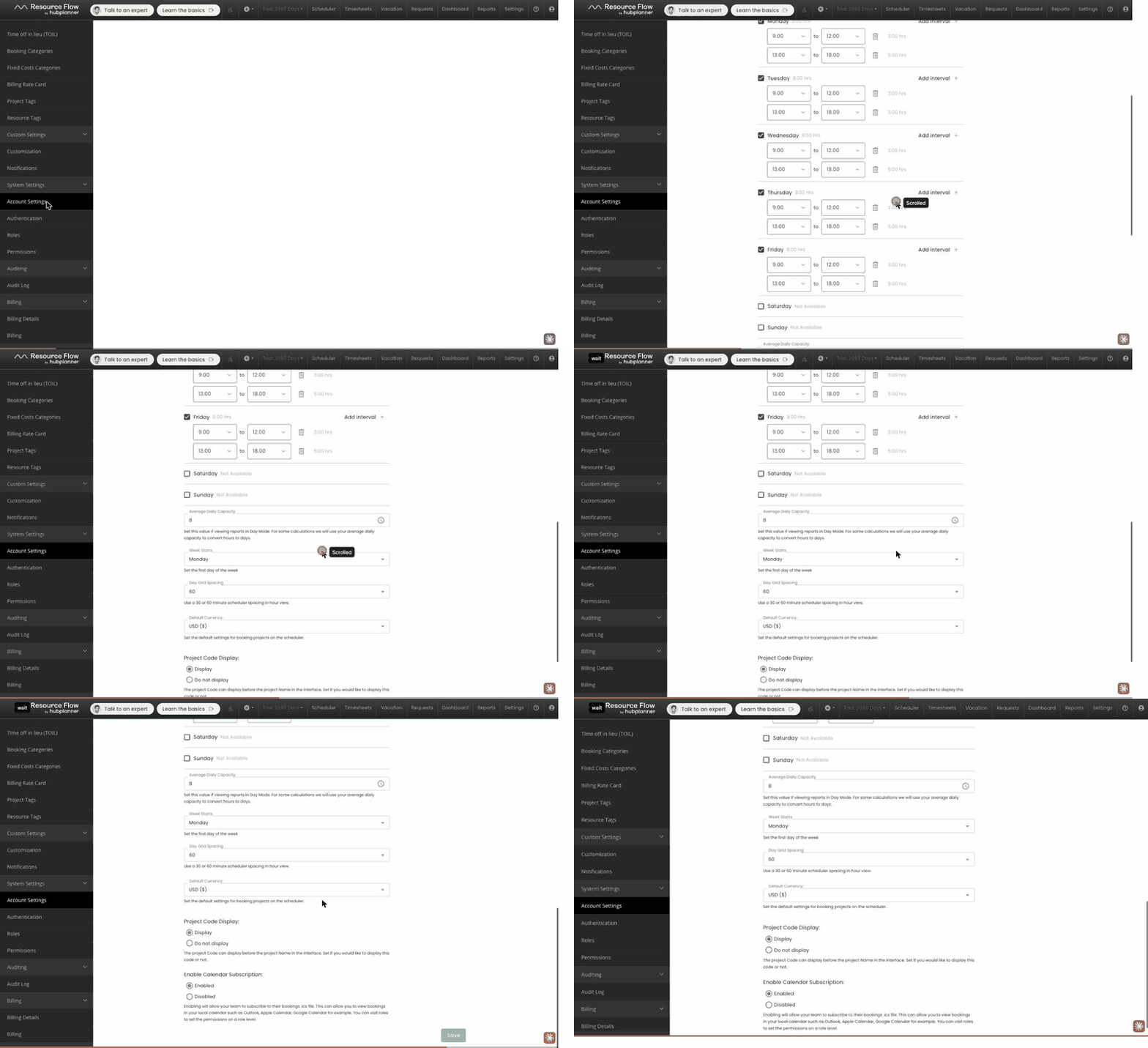
A tour of the Account Settings page
? Tip: Set your working hours carefully if your team books by the hour. The hour scale on the scheduler starts and ends at these times.
ℹ️ Note: Admin settings pages may still show "Hub Planner" in the page title. The settings themselves are the same.
Related articles
Was this article helpful?
That’s Great!
Thank you for your feedback
Sorry! We couldn't be helpful
Thank you for your feedback
Feedback sent
We appreciate your effort and will try to fix the article