The Absence module in Moment provides a complete overview of employee absences and allows administrators to configure absence types, approval workflows, and company holiday settings. Proper configuration ensures accurate availability planning, time tracking, and reporting across the organization.
The Absence tab provides a centralized overview of all registered absences within the company.
There are two main views available:
- Calendar View
- Absence Report
The Absence calendar is structured by weeks, similar to the Project Plan, making it easy to get a visual overview of employee availability.
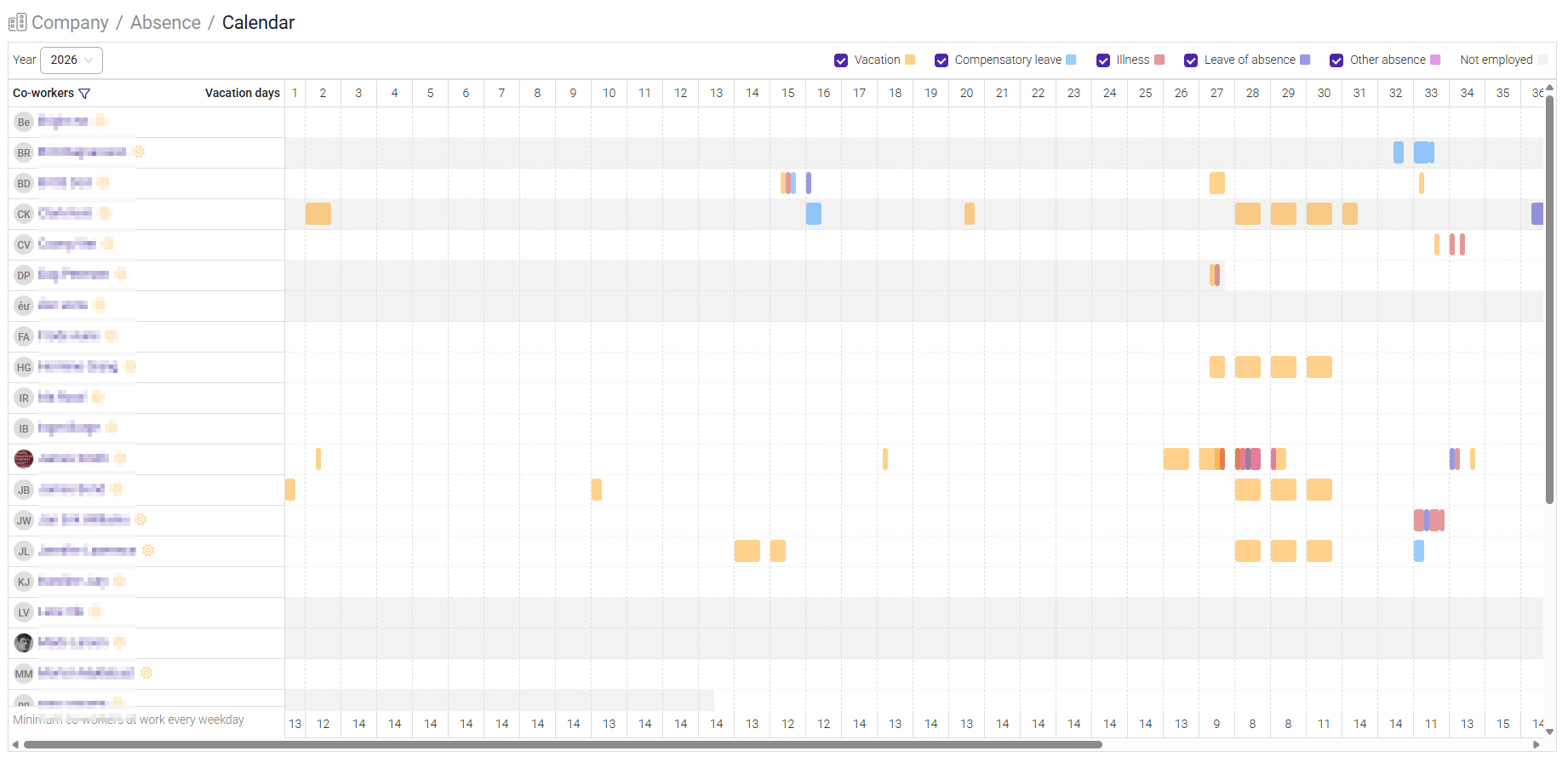
The color legend is displayed in the upper-right corner of the calendar, allowing users to quickly identify different types of absences.
Absence Report
The Absence Report provides detailed insights into absence registrations across the organization.
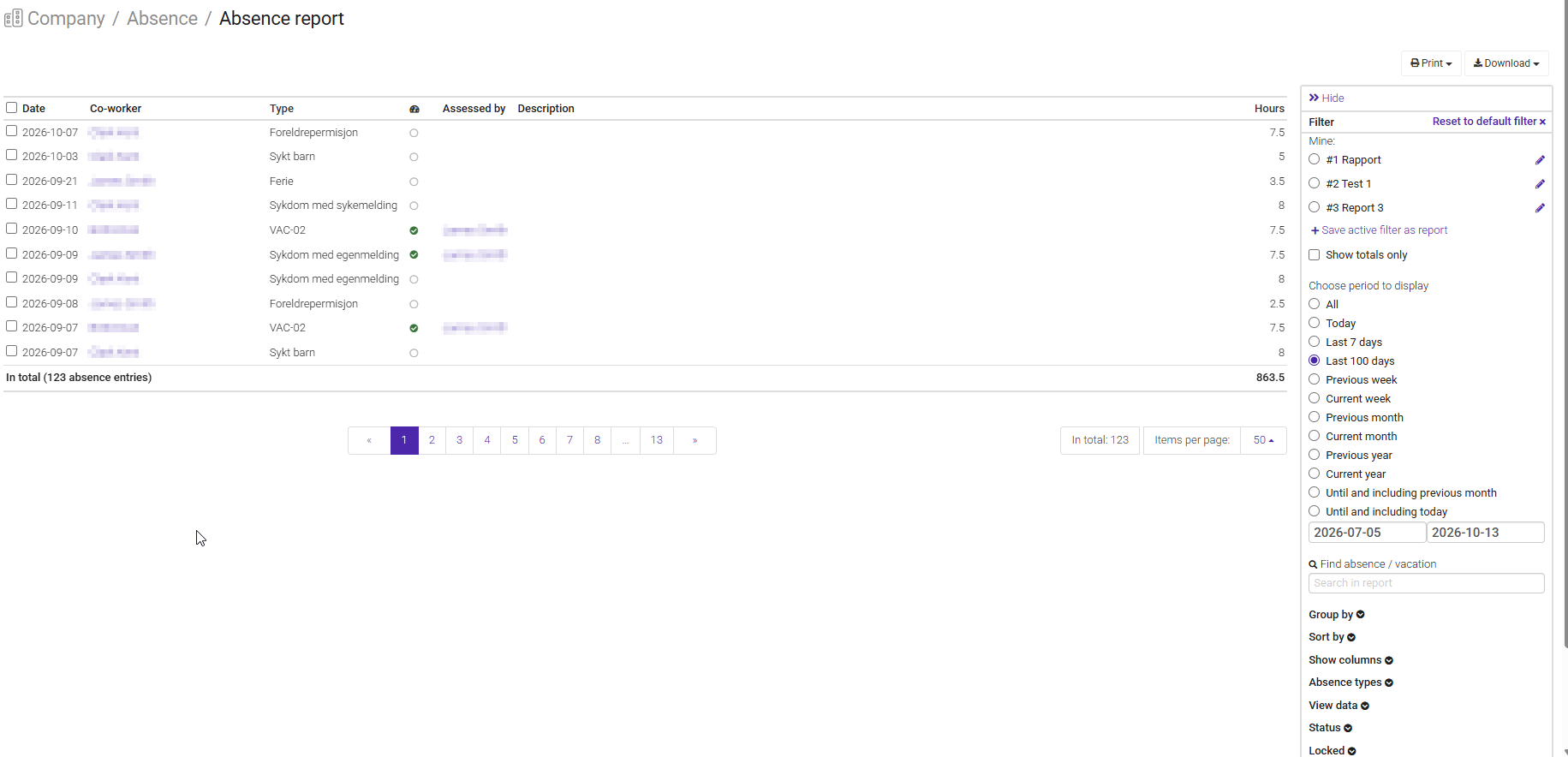
Using the report, you can:
- Filter absences by type and category
- Group absence data for analysis
- Identify absence trends and patterns
- Support workforce and capacity planning
This view is particularly useful when analyzing absence levels across teams, departments, or time periods.
The Absence Setup section defines how absences are configured and managed within the system.
Navigate to Setup → Absence Setup → Absence Types
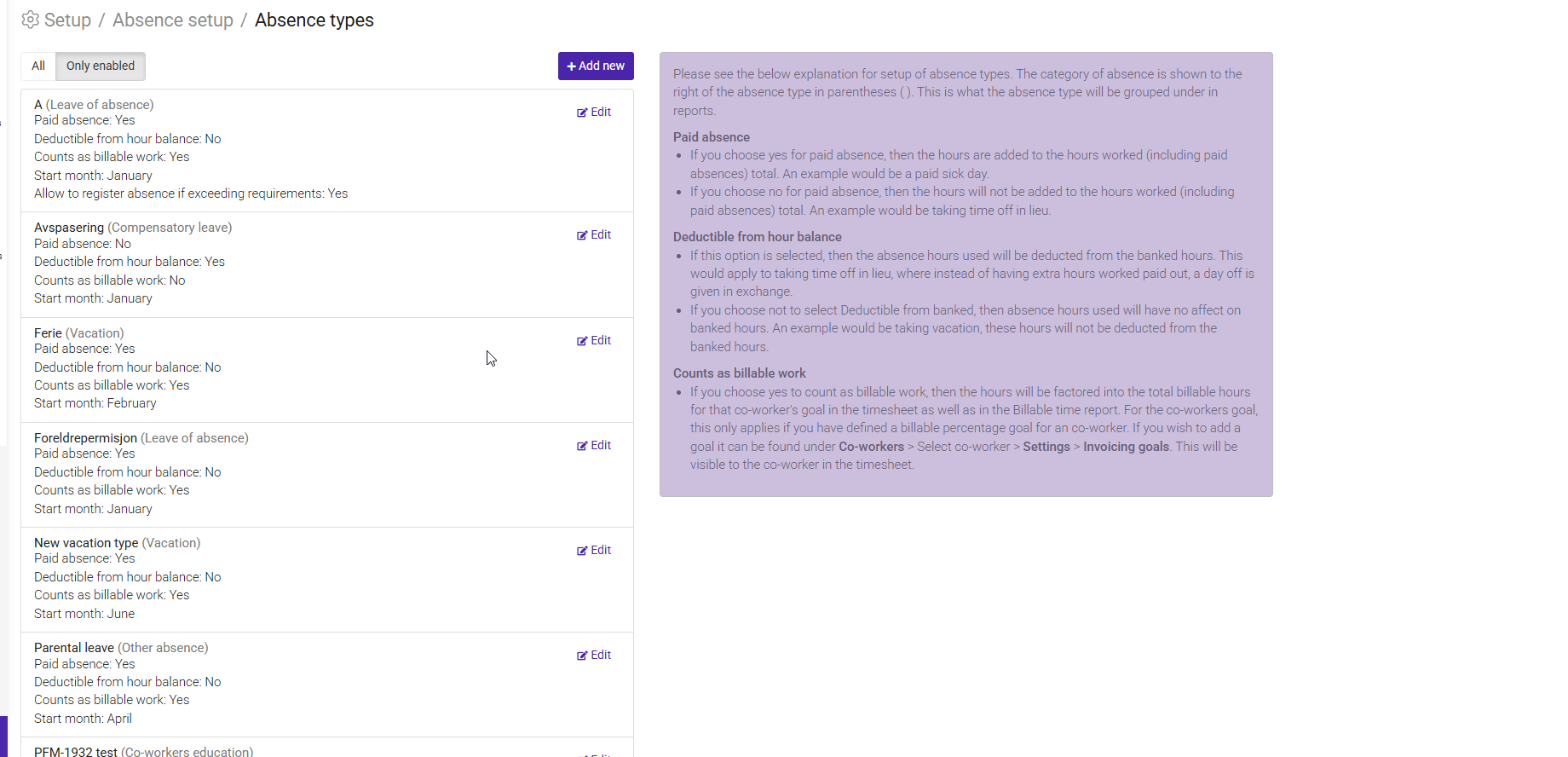
Administrators can configure:
- Absence types (Vacation, Sick Leave, Parental Leave, etc.)
- Registration and approval rules
- Balance and entitlement calculations
- Company-specific absence policies
Moment supports approval workflows based on tags.
This allows managers to approve absences for specific groups of employees rather than the entire organization.
Employees register absence directly in their timesheet using predefined absence types.
The available absence types depend on the configuration defined in Absence Setup. Depending on the selected absence type, the registration may require approval before becoming valid.
The Holidays page is used to manage company-wide holidays, such as national holidays and other non-working days.
Navigate to Company → Holidays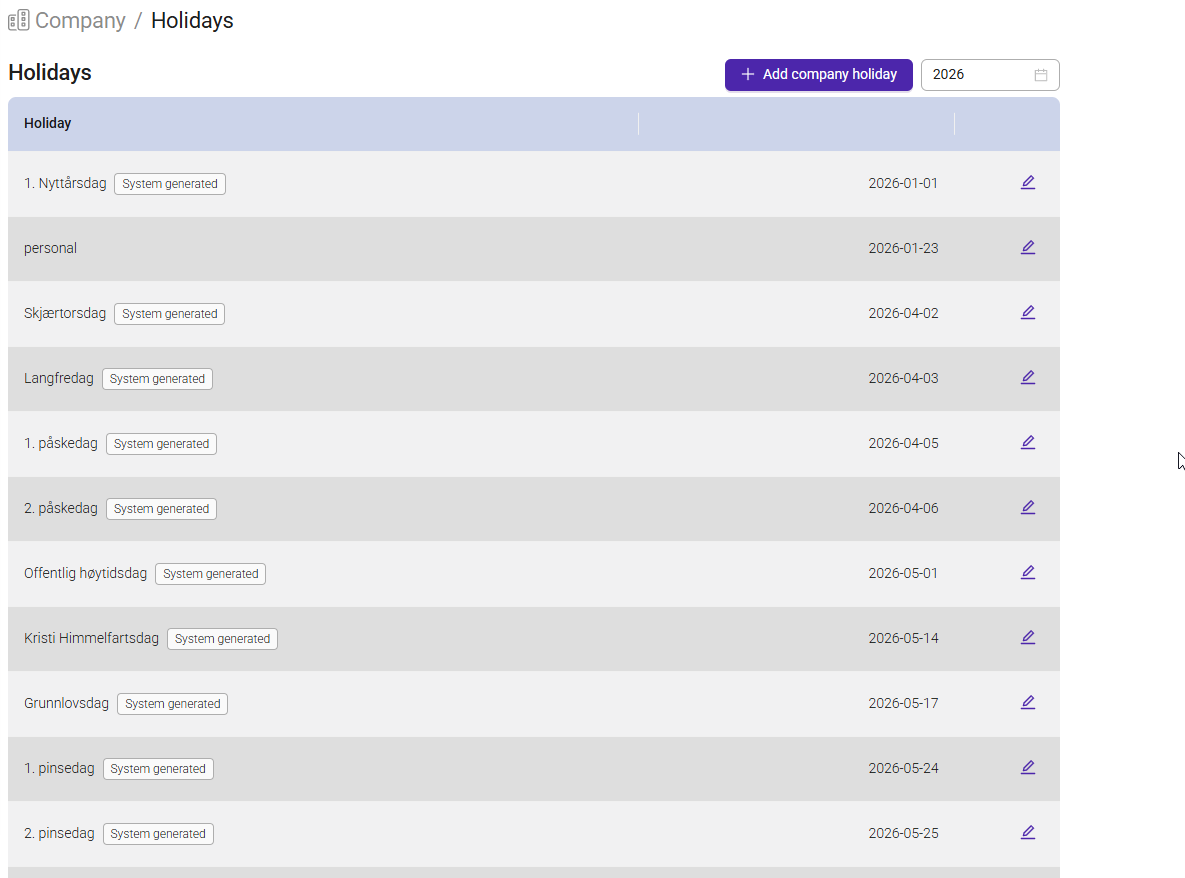
Company holidays are days when employees are not expected to work.
Typical examples include:
- National holidays
- Public holidays
- Company-wide closing days
If employees register hours on a company holiday, those hours are treated as extra (banked) hours.
To create a holiday with reduced working hours:
- Navigate to Setup → Settings → General
- Enable Partial Holidays
- Return to Company → Holidays
- Define the reduced number of working hours for the day

This allows employees to register fewer hours than a normal working day while maintaining accurate time tracking.
Banked hours are calculated based on the difference between expected working hours and the actual time registered by an employee.
The impact of an absence registration depends entirely on how the absence type is configured.
Depending on the setup, an absence type may:
- Reduce banked hours
- Have no impact on banked hours
- Be counted as paid working time
For example:
| Absence Type | Possible Effect on Banked Hours |
|---|---|
| Vacation | Usually counted as paid time |
| Sick Leave | Depends on company configuration |
| Unpaid Leave | Typically reduces banked hours |
| Company Holiday | Often treated as paid time |
The effect on banked hours is not determined by the absence itself, but by the configuration of the specific absence type.
Administrators should review absence type settings carefully to ensure banked hour calculations reflect the company's policies.
Was this article helpful?
That’s Great!
Thank you for your feedback
Sorry! We couldn't be helpful
Thank you for your feedback
Feedback sent
We appreciate your effort and will try to fix the article