For: Managers · Time: about 3 minutes
You need: permission to create groups
A manual group is a team you pick by hand, such as "Project Leads". It appears in your sidebar with its own group schedule, and you can use it in reports and dashboards.
Create the group
- In the sidebar, click Add new → New resource group (or New project group for projects).
- Under Group | Team, switch Make Smart off. A manual group doesn't update itself from filters.
- Click Select Data.
- Remove anything already listed under Selected Data, such as Active Resources.
- Type a name in the Filter box and click + next to each person you want. Repeat for everyone in the team.
- Click Save as new…, keep Group selected, type a name and click Save as new.
The new group opens straight away and appears in your sidebar.
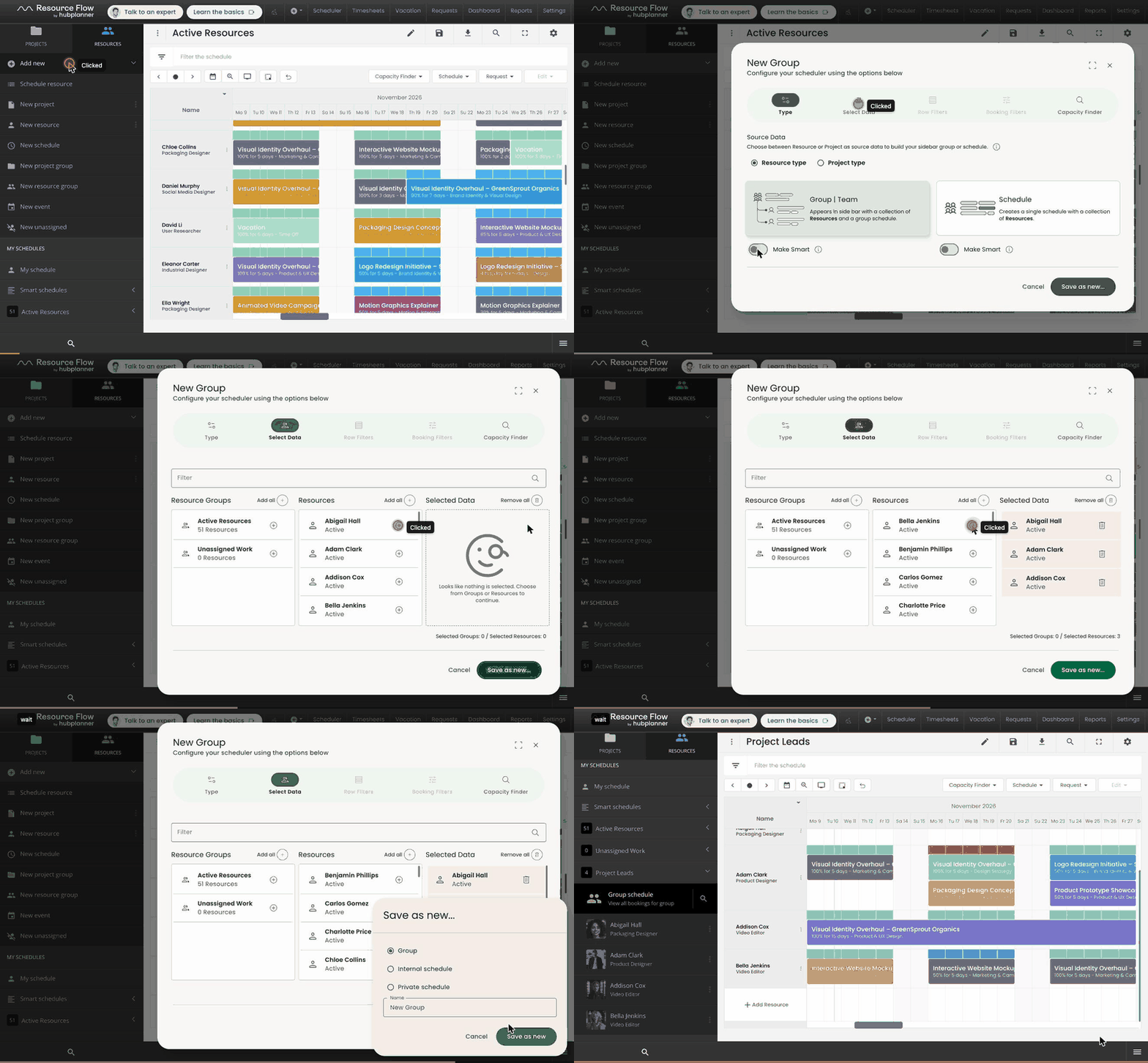
Building a manual group called Project Leads
Add or remove people later
Open the group, click the three dots next to its name and choose Edit group…. Make your changes and click Update.
? Tip: Leave Make Smart on to build a group from rules instead, for example everyone with Location = London. It then updates automatically as people change.
Related articles
Was this article helpful?
That’s Great!
Thank you for your feedback
Sorry! We couldn't be helpful
Thank you for your feedback
Feedback sent
We appreciate your effort and will try to fix the article