For: Team members · Time: about 3 minutes a week
You need: bookings on your schedule
Your schedule shows what you were planned to work on. Your timesheet records what you actually worked. Resource Flow fills in your timesheet from your bookings, so most weeks you only need to check it and submit.
Complete and submit
- Click Timesheets in the top menu.
- Use the arrows to go to the week you want. The dot brings you back to this week.
- Each project you were booked on appears with its category and your planned hours for each day.
- Click Accept All Suggestions (or Accept Suggestions on one project). The hours turn yellow, meaning they're saved but not yet submitted.
- Change any day that doesn't match what you really did. Click the cell and type the hours, for example 4:30 if you worked half an hour longer.
- If your organisation requires notes, click a cell, choose Notes and add a short note.
- Click Submit All, or submit one entry from its cell menu.
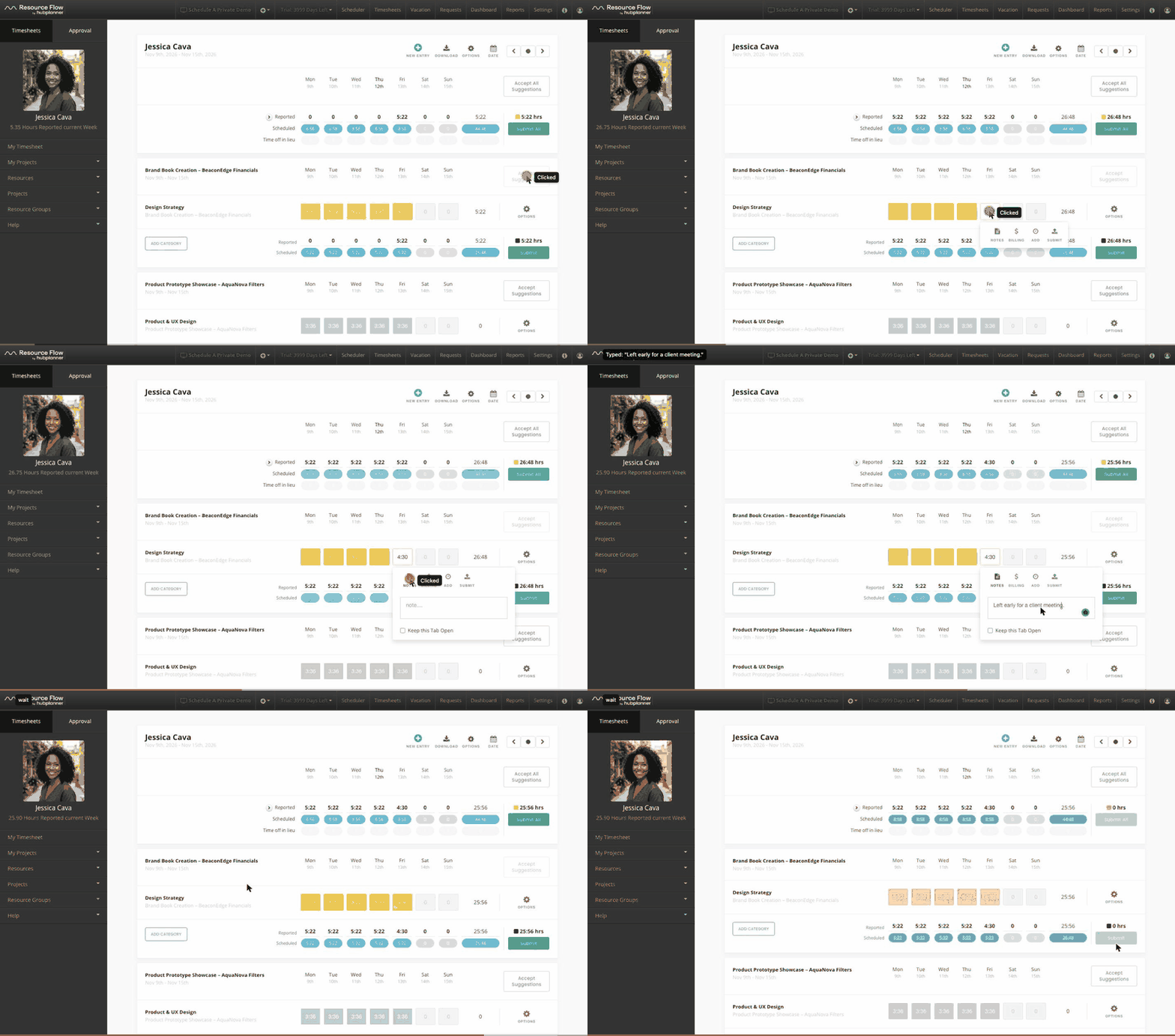
Accepting suggestions, editing a day, adding a note and submitting
What the colours mean
| Colour | Status |
|---|---|
| Yellow | Saved, not submitted |
| Orange, with a lock | Submitted, waiting for approval |
| Blue | Approved |
| Green | Submitted (no approval needed) |
| Red | Rejected: check the note and resubmit |
? Tip: Please record your real hours rather than just accepting what was planned. Accurate timesheets help your manager plan your work better. It's not about checking up on you.
? Tip: Worked on something you weren't booked for? Click New Entry, choose the project and category, and add your hours.
FAQ: Why won't my timesheet submit?
If you see "Some Time Entries were not submitted as a Note is Required", your organisation needs a note on each entry. Add a note to each highlighted day, then submit again.
For admins: required notes
Required notes can be switched on or off in two places:
- For every project: Settings → Manage Extensions → Timesheets, then Required notes. This sets the default for all projects.
- For one project: open the project, go to Timesheet Settings (under the more menu on the project's tabs) and change Required notes for that project only.
Related articles
Was this article helpful?
That’s Great!
Thank you for your feedback
Sorry! We couldn't be helpful
Thank you for your feedback
Feedback sent
We appreciate your effort and will try to fix the article