For: Managers · Time: about 2 minutes
You need: a schedule open, such as a group schedule
Filters narrow the schedule down to the people, projects or bookings you care about, for example only project managers, or only people in one location.
Apply a filter
- Open the schedule you want to filter, such as a group schedule.
- Click the filter icon to the left of Filter the schedule.
- Choose a filter type, for example Resource Roles, Tags, a custom field or Is Project manager, and tick the values you want.
- Click outside the panel. Your filters appear as chips in the filter bar, and the schedule updates.
- To remove one filter, click the × on its chip. To clear them all, click the × at the far right of the filter bar.
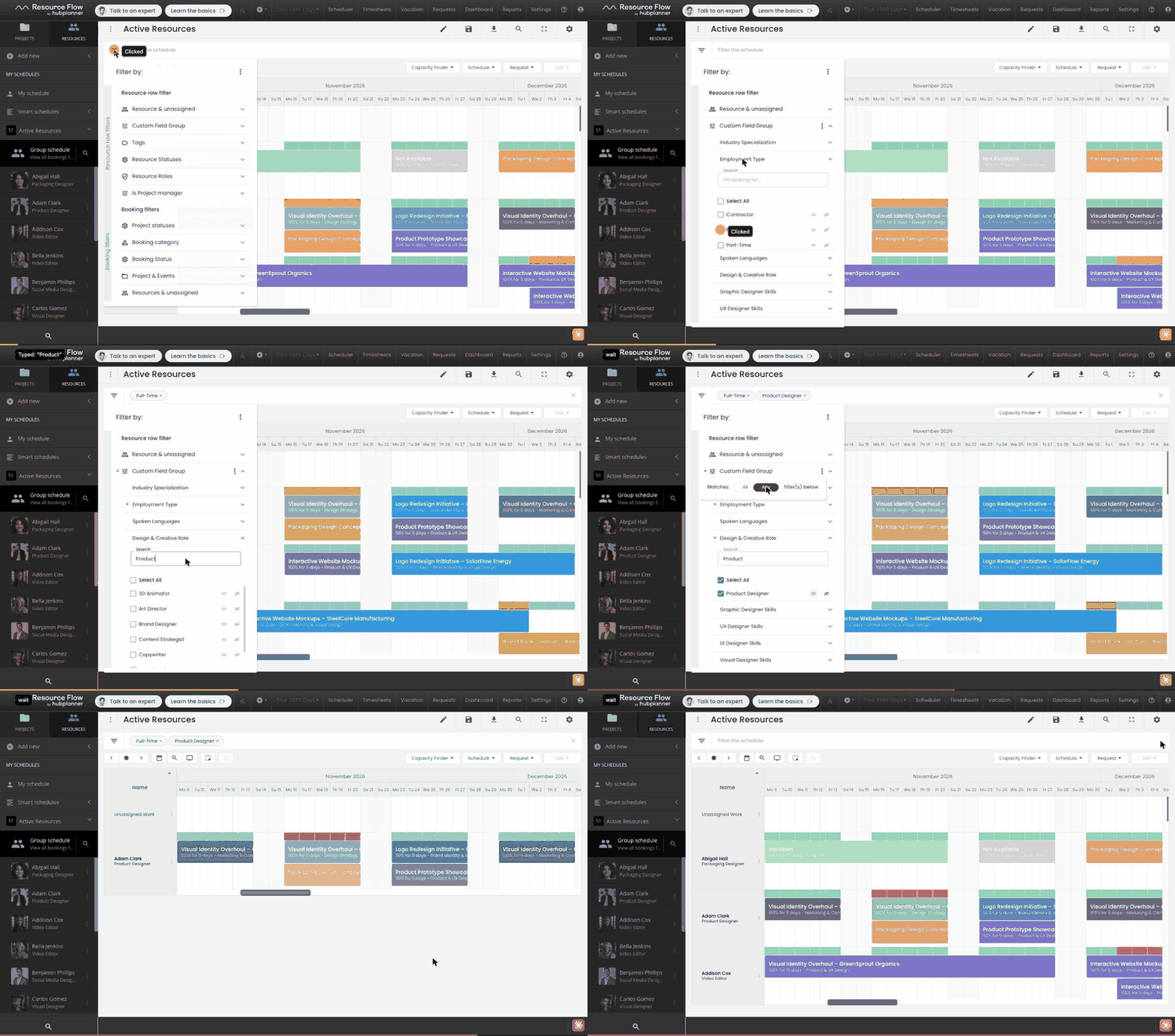
Filtering the scheduler by role and custom field
All or Any?
When you pick more than one value, you can match All of them or Any of them:
- All shows only items that meet every condition, for example located in London and senior.
- Any shows items that meet at least one condition.
? Tip: Filters change only your own view. To keep a filtered view, click Save in the toolbar and save it as a group or schedule.
ℹ️ Note: The filters you see depend on the view mode. In single-row resource view, project filters are hidden.
Related articles
Was this article helpful?
That’s Great!
Thank you for your feedback
Sorry! We couldn't be helpful
Thank you for your feedback
Feedback sent
We appreciate your effort and will try to fix the article