For: Everyone · Time: about 3 minutes
You need: a Resource Flow login
The scheduler shows who is booked on what. The toolbar above the grid lets you move through time and change how much detail you see.
Open a schedule
- In the left sidebar, choose Resources (people) or Projects.
- Click a group, such as Active Resources, then click Group schedule to see everyone in that group.
Move through time
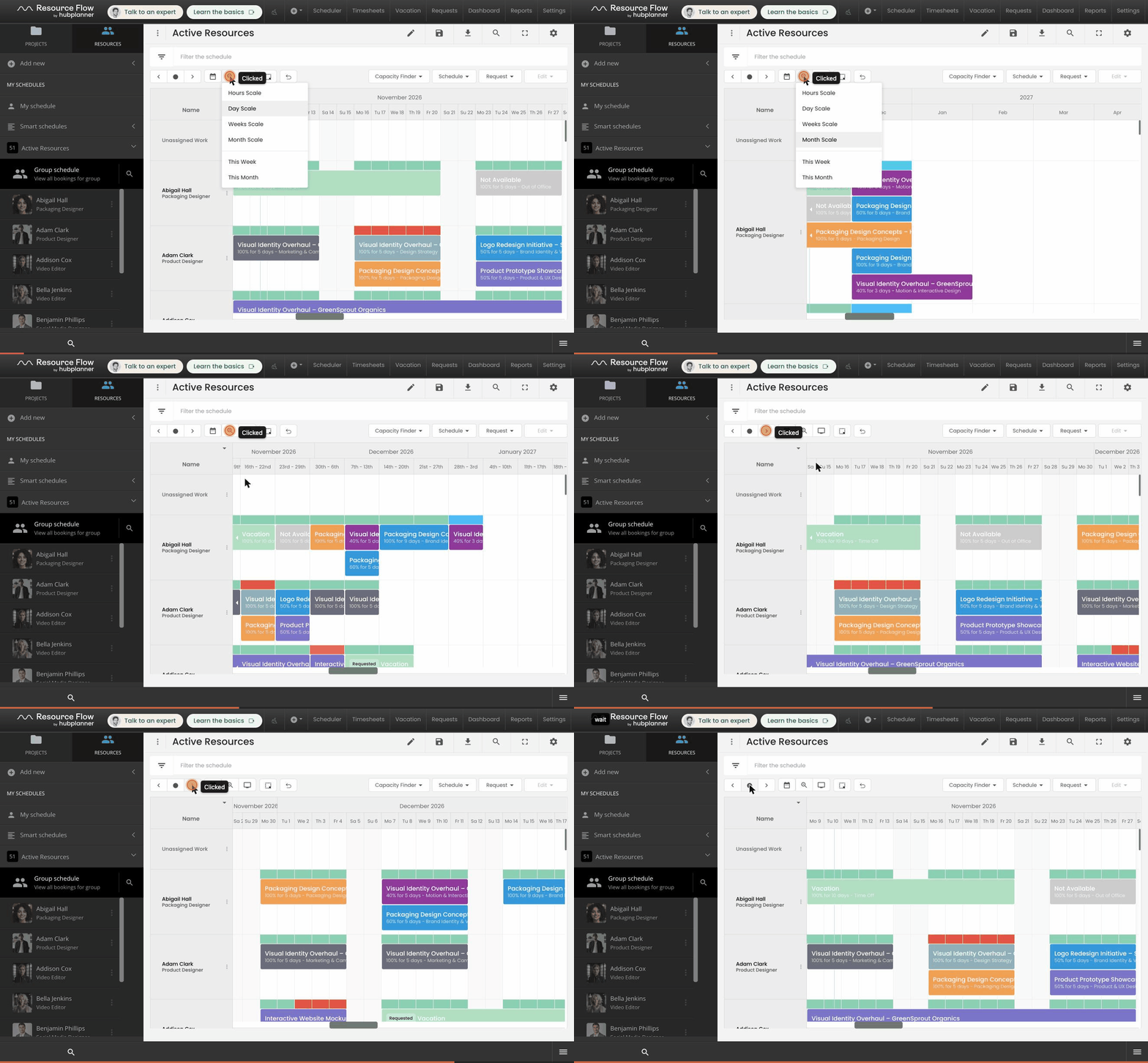
- Use the left and right arrows to step backwards or forwards.
- Click the dot between the arrows to jump back to today, wherever you are.
- Click the calendar icon to jump to a specific date.
Change the scale
- Click the magnifying glass in the toolbar.
- Choose Hours, Day, Weeks or Month Scale. You can also pick This Week or This Month.
ℹ️ Note: Your scale and view choices only change your view. Nobody else in your organisation is affected.
? Tip: Click the full-screen icon at the top right to hide the sidebar and give the schedule more room.
Related articles
Was this article helpful?
That’s Great!
Thank you for your feedback
Sorry! We couldn't be helpful
Thank you for your feedback
Feedback sent
We appreciate your effort and will try to fix the article