For: Everyone · Time: about 1 minute
You need: the scheduler open
The quick search finds anyone or anything in Resource Flow and takes you straight to its schedule.
Use quick search
- Click the magnifying glass in the bar at the bottom left of the scheduler.
- Start typing a name. Results are grouped into Resources, Projects and Groups.
- Click a result, or use the arrow keys and press Enter. Press Esc to close the search.
The title at the top of the scheduler always tells you which resource, project or group you're looking at.
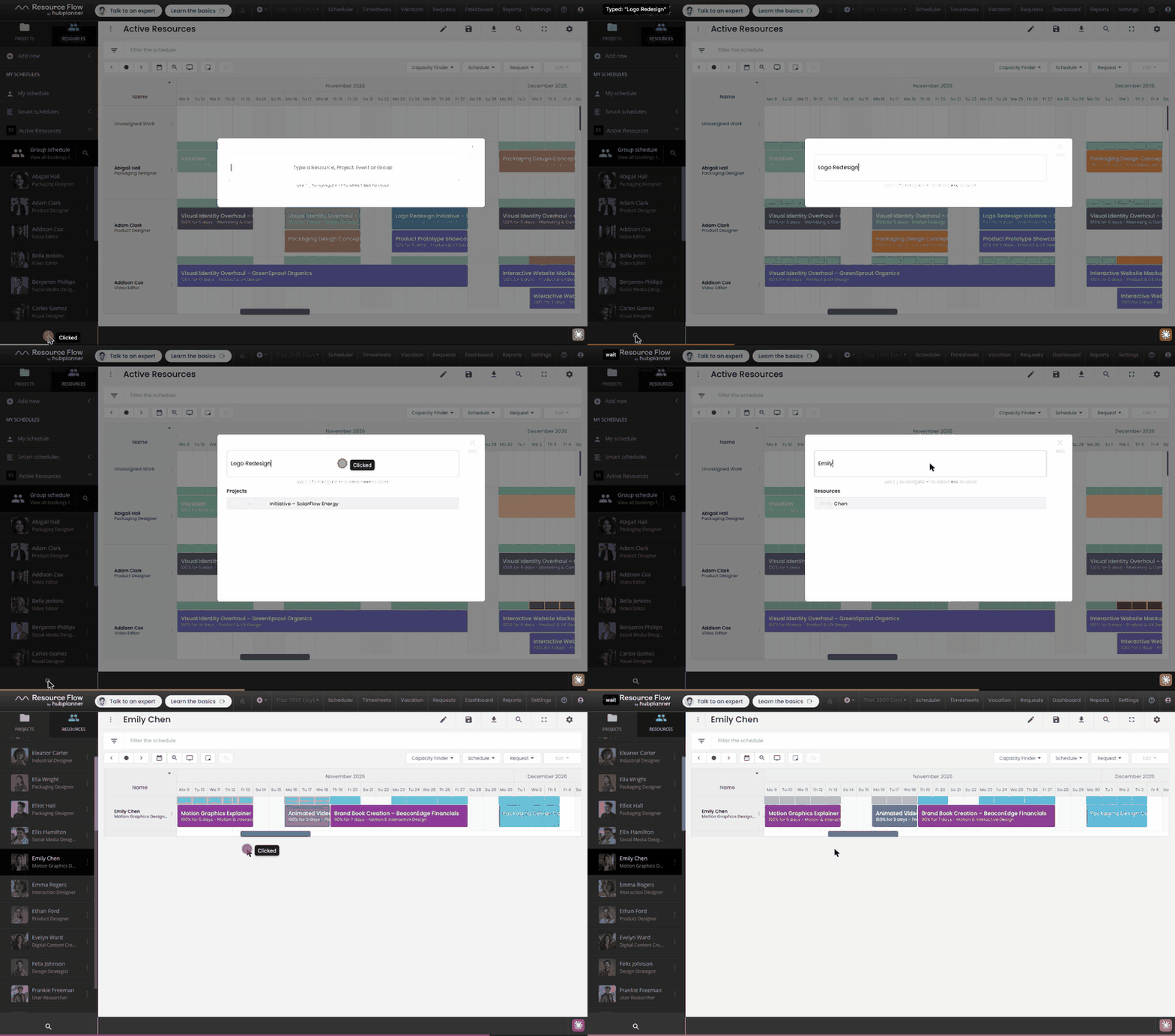
Searching for a project and a person
FAQ: Why can't I find something with the sidebar search?
The magnifying glass next to Group schedule in the sidebar only searches inside that group. To search everything, use the quick search at the bottom of the screen.
FAQ: Where has the search bar at the bottom gone?
It's switched off in your preferences. Go to Settings → My Preferences and turn on Display scheduler footer. It's also hidden while the scheduler is in full-screen view.
Related articles
Was this article helpful?
That’s Great!
Thank you for your feedback
Sorry! We couldn't be helpful
Thank you for your feedback
Feedback sent
We appreciate your effort and will try to fix the article