For: Managers · Time: about 5 minutes
You need: access to Reports and a group of projects or resources
The Report Builder lets you make your own report, for example scheduled hours against reported hours for a group of projects.
Build the report
- Click Reports in the top menu, then Report Builder.
- Type: choose what each row will be: Project, Resource, Unassigned, Event or Booking.
- Select Data: remove the default selection, then add the group or individual projects you want. Use the Filter box to find them quickly.
- Time range (top right): pick a period such as This month.
- Columns: add the measures you need, for example Scheduled Time and Reported Time. Type in the filter box to find a column.
- Optionally, use Filters and Grouping to narrow the data or split each row, for example by booking category.
- Click Build Report.
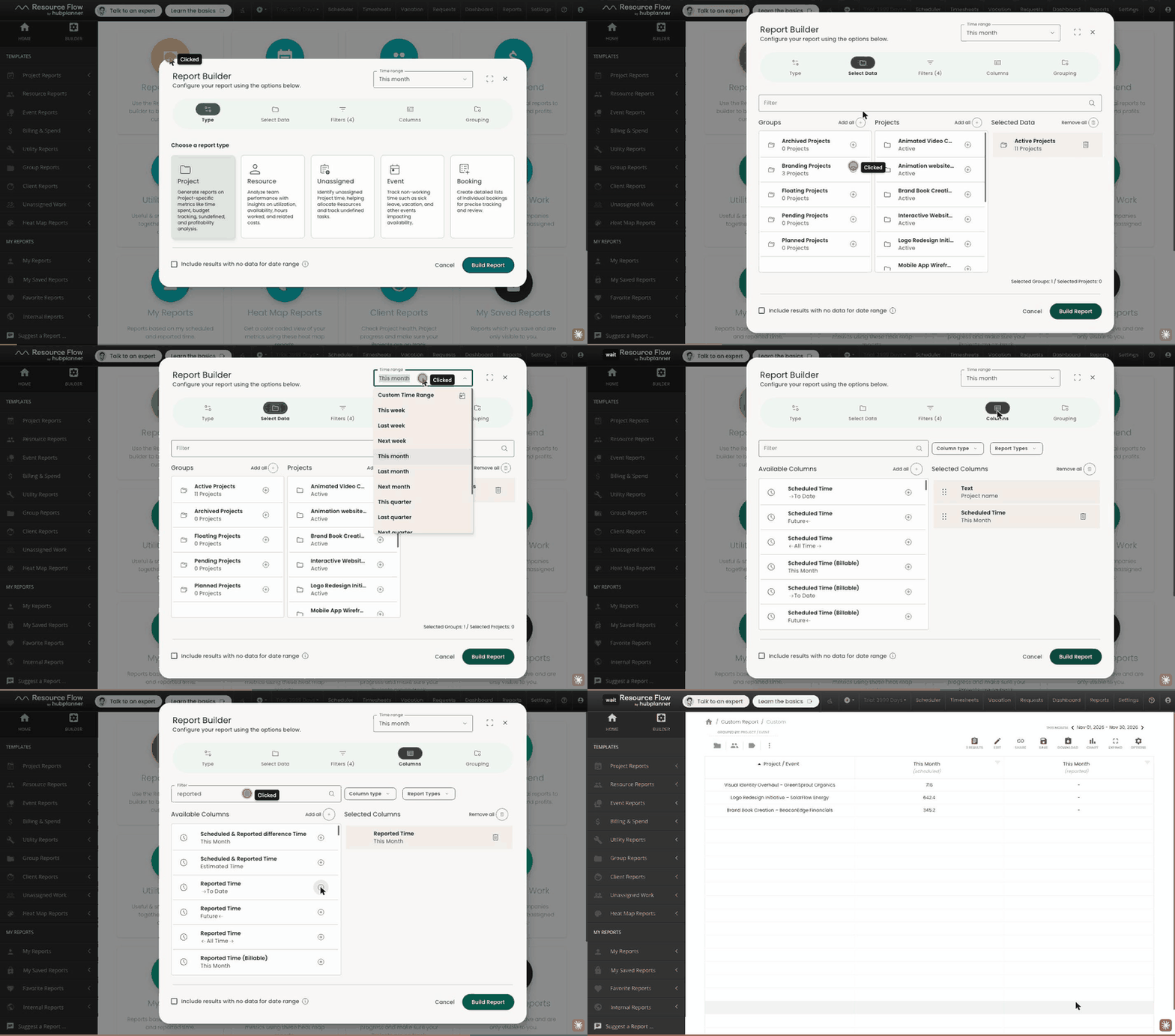
Building a project report of scheduled vs reported time
Once the report is built
- Save it, privately or for your team.
- Share a link.
- Download it as a spreadsheet or PDF.
- Show it as a Chart.
? Tip: A relative time range such as This month or Last week updates by itself every time you open the saved report. Choose a custom date range if you want the report to stay fixed.
? Tip: You can build reports on groups but not on saved schedules. Save the people or projects you report on as a group first.
FAQ: Can I share a report with someone who doesn't use Resource Flow?
No. Shared links only open for people with access to your account. Download it as a spreadsheet or PDF instead.
Related articles
Was this article helpful?
That’s Great!
Thank you for your feedback
Sorry! We couldn't be helpful
Thank you for your feedback
Feedback sent
We appreciate your effort and will try to fix the article