An OCR number is an ID added to an invoice so incoming payments can be matched to it. When a customer pays using this number, Moment can find the right invoice and register the payment automatically.
In Moment the number is called Payment ID. Depending on the country it is the KID number (Norway), the payment ID in an FIK line (Denmark) or the reference number (Finland).
The settings are under Settings → Invoicing options, in the section OCR number:
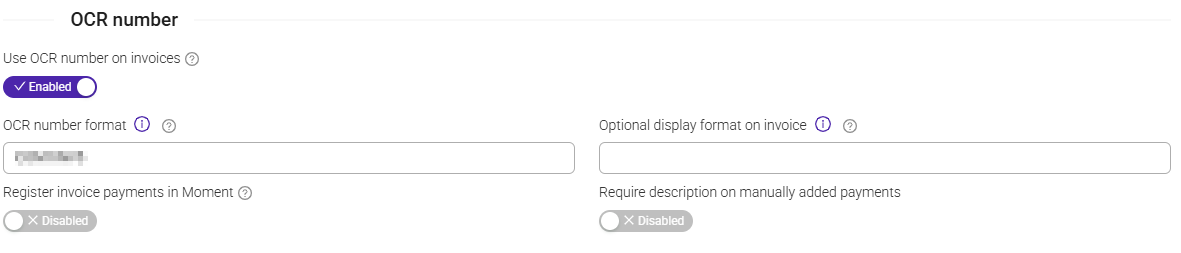
| Setting | What it does |
|---|---|
| Use OCR number on invoices | Turns on OCR numbers for new invoices. |
| OCR number format | Sets how the number is built (see the abbreviations below). Agree on the format with your bank first. |
| Optional display format on invoice | Lets you show the number with extra characters on the PDF, for example the Danish FIK line. |
| Register invoice payments in Moment | Lets you register payments and send payment reminders in Moment. Turn it off if you only follow up payments in an external accounting system. |
| Require description on manually added payments | Makes the text field required when someone registers a payment by hand. |
Good to know:
- Moment creates the OCR number when an invoice is finalized. Drafts don't have one.
- Changing the format only affects invoices finalized after the change. Existing invoices keep their number.
- You can see the number in the Payment ID field on the invoice. On a finalized invoice you can edit it, or click Update to generate it again from the current format.
- If you change the invoice number or customer number on a finalized invoice, the Payment ID is generated again automatically. This doesn't happen if you also typed a Payment ID yourself in the same change.
Use the abbreviations below in OCR number format. After INV and CLI, add a number for how many digits that part should have. Numbers that are shorter get leading zeros.
- INV — invoice number (add number of digits)
- CLI — customer number (add number of digits). Only works with numeric customer numbers.
- TYPE — invoice type: 1 = invoice, 3 = credit note
- COM — a fixed number. The digits you write after COM appear exactly as written.
- ISSUE — invoice date in DDMMYY format (6 digits)
You can use the abbreviations in any order. Moment always adds one control digit at the end.
Limits:
- Number of digits: use at least one more digit than your invoice numbers have now, so the series has room to grow. For example, use INV8 if your invoice numbers have 7 digits. If an invoice or customer number gets longer than the format allows, Moment won't finalize the invoice and shows "OCR format is too short to fit code …". You then need to make the format longer.
- Maximum length, including the control digit: 25 digits in Norway, 20 in Finland and 50 in other countries.
- Unique numbers: always include INV. Moment matches a payment by searching for its OCR number. If two invoices have the same number, for example with a format that only uses CLI, the payment can't be matched automatically.
Norway – KID
To use KID numbers you need an agreement with your bank/Nets. The agreement sets the KID length and the modulus. Moment only supports modulus 10, so the agreement must use MOD10.
Setting Up KID in Moment
- Go to Settings → Invoicing options and open the OCR number section.
- Turn on Use OCR number on invoices.
- Enter the format in OCR number format. The most common is INV(X), where X is the number of digits in the invoice number. Moment adds one control digit at the end.
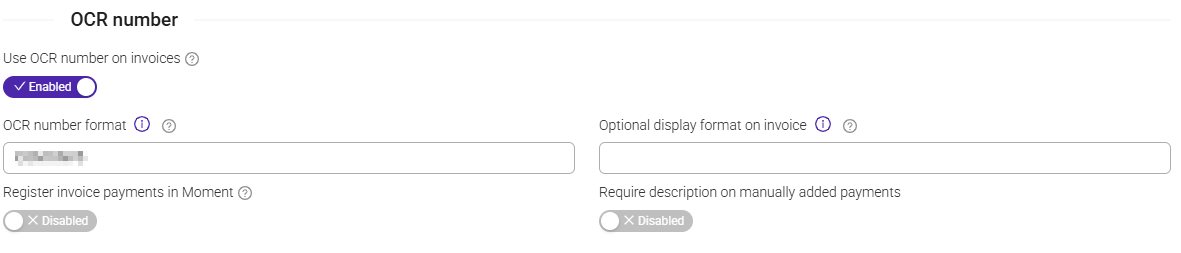
Example: INV6 → 6 digits + 1 control digit = 7-digit KID. Invoice 4345 → 0043455.
You can also include the customer number with CLI(X) (see Examples).
When you set up KID/OCR file delivery, give your bank this information:
- Modulus: MOD 10
- Your KID number format: length and structure
- Recipient of accounting data:
- Customer entity ID in Nets: 00502692
- Name: Moment Team AS
- Address: Wergelandsveien 1
- Phone: +47 22828700
- Accrual of OCR giro / eGiro accounting data:
- Tick only for OCR giro
- Tick for daily/final settlement
If you also want to read OCR files in an external accounting system, tell your bank. They must add both systems as recipients of the OCR files.
The KID on the invoice alone doesn't register payments.
You also need:
- The integration "Automatic import of payments (OCR/Cremul)" turned on in the company's integrations. In the integration, select the bank account(s) that should be included. Moment then fetches the OCR and CREMUL files from Nets regularly during the day.
- The same bank account on the invoice and in the payment. Moment only registers a payment when the receiving account is the one printed on the invoice. If you change bank account, payments made to the new account for invoices that show the old account won't be matched automatically.
You can also upload a file by hand in Economy → Payments, either an OCR file or a camt.054 file.
A payment that arrives but can't be matched is still saved in Moment, just not linked to an invoice.
Possible reasons include a missing KID number, duplicate KID numbers on multiple invoices, or a bank account mismatch.
By default the payments list only shows matched payments. To find unmatched ones, set the status filter to Unmatched and the period to All, and don't filter by customer.
Imported OCR payments can't be edited. The fix is to register the payment manually on the invoice and ignore the unmatched line.
Denmark – FIK
To use FIK numbers you need an agreement with your bank to join ''Det Fælles Indbetalingssystem'.
The agreement gives you:
- Card Type
- Vendor Number
- The required length of the payment ID
An FIK number has this structure:
+{kortart}<{payment ID}+{kreditornummer}<
Set it up in two steps:
- Define the payment ID in OCR number format, with the length your bank requires. For kortart 71 this is usually 15 digits including the control digit.
- In Optional display format on invoice, enter kortart and kreditornummer around the placeholder {OCR}:
+71<{OCR}+99999999<
Finland – Reference number
Finnish companies use the same abbreviations, with three differences:
- The control digit uses the Finnish reference-number method (weights 7-3-1), not MOD10.
- INV and CLI don't get leading zeros.
- The number is shown in groups of five digits, for example 20153 12301 35.
The length must be 4–20 digits.
Examples:
Invoice number: 4345, customer number: 23412
| OCR number format | How it's built | Result |
|---|---|---|
| INV6 | Invoice → 004345 · control digit 5 | 0043455 (7 digits) |
| INV6CLI6 | Invoice → 004345 · Customer → 023412 · Combined → 004345023412 · control digit 5 | 0043450234125 (13 digits) |
| COM23INV7CLI8COM4 | Fixed 23 · Invoice → 0004345 · Customer → 00023412 · Fixed 4 · Combined → 230004345000234124 · control digit 4 | 2300043450002341244 (19 digits) |
| INV6TYPE | Invoice → 004345 · Type 1 (invoice) · control digit 4 | 00434514 (8 digits). Credit note 4346 → 00434639 |
| INV6ISSUE | Invoice → 004345 · Date 31.03.26 → 310326 · control digit 9 | 0043453103269 (13 digits) |
| INV14 | Invoice → 00000000004345 · control digit 5 | 000000000043455 (15 digits, suits FIK kortart 71) |
Use the Optional Display Format on the invoice when the invoice number needs to contain characters other than digits. A Danish FIK line containing + and is a common example.
Enter the desired format and place {OCR} where the number should appear. You can also use {KID}. Be sure to keep the curly brackets.
If this field is left blank, only the number will be displayed.
Example: kortart 71, kreditornummer 99999999, format INV14, invoice 4345.
- Display format: +71<{OCR}+99999999<
- On the invoice: +71<000000000043455+99999999<
The display format only changes how the number looks on the PDF invoice.
The payment ID itself is used for matching, e-invoices (EHF) and reminders, and it always stays digits only.
Was this article helpful?
That’s Great!
Thank you for your feedback
Sorry! We couldn't be helpful
Thank you for your feedback
Feedback sent
We appreciate your effort and will try to fix the article