For: Managers · Time: about 3 minutes
You need: permission to add projects
Add the project
- In the sidebar, click Add new → New project.
- On Basic info, type a Project name. Fields marked with a red star are required. Add a Project code / ID if you use them.
- Optionally choose a client, add tags, pick a project manager and set the status (Active by default).
- Check the category groups and the default booking category. New bookings on this project will use that category.
- If Add New is still greyed out, look for a red dot on the tabs. Open that tab (often Custom Fields, under the three-dot menu at the end of the tabs) and fill in the required fields.
- Click Add New. The project opens on its own schedule, ready for you to add people.
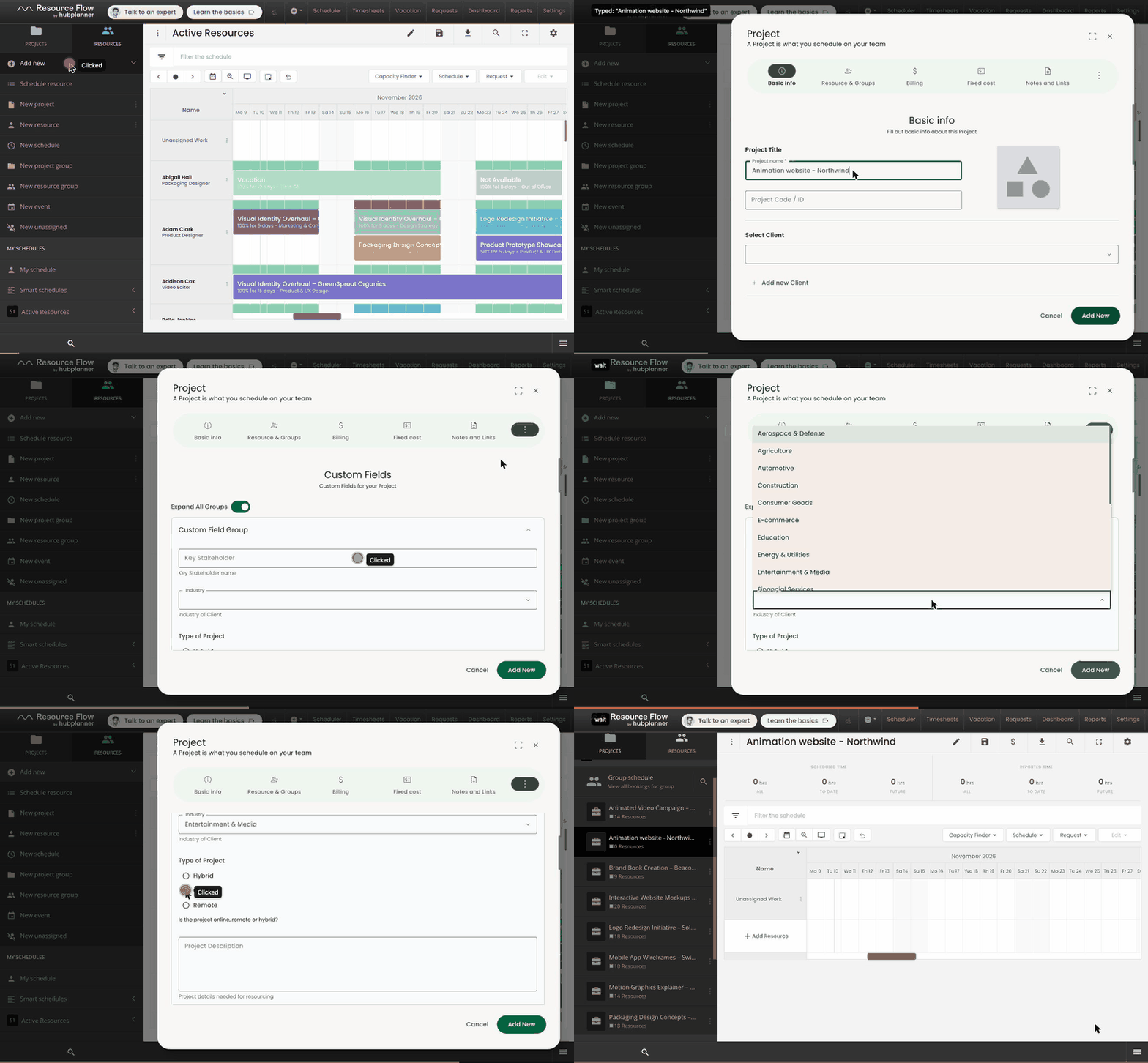
Creating a project and filling in required custom fields
? Tip: To add many projects at once, go to Settings → Manage projects and import a CSV file.
FAQ: Why can't I click Add New?
One of two things is usually the cause:
- A required field is empty. A red dot on a tab shows where it is; required custom fields are marked with a red star.
- The dates don't work. The end date can't be before the start date.
Related articles
Was this article helpful?
That’s Great!
Thank you for your feedback
Sorry! We couldn't be helpful
Thank you for your feedback
Feedback sent
We appreciate your effort and will try to fix the article