For: Managers · Time: about 3 minutes
You need: permission to edit bookings
A recurring booking repeats on a regular cadence, such as a weekly check-in or one day a week on a project. You create it once and Resource Flow places every occurrence on the scheduler for you.
Create the booking
- On the scheduler, drag across the resource's row to select the dates for the first occurrence, then click the selection. The booking form opens with the resource and dates filled in.
- Set the length in Days (for example, 1 for a single day) and the allocation as a percentage, hours a day or total hours.
- Click the repeat icon next to the Days field.
- Under Interval, choose Daily, Weekly, Bi Weekly, Monthly, Yearly or Custom.
- Under Ends, choose On a date, After a number of occurrences, or Never. Click Back. The form now says Booking will repeat weekly (or your chosen interval).
- Click Choose a Project or Event, type a few letters of the project name to filter, and select it.
- Click Schedule. Each occurrence appears with a small repeat icon on the booking bar.
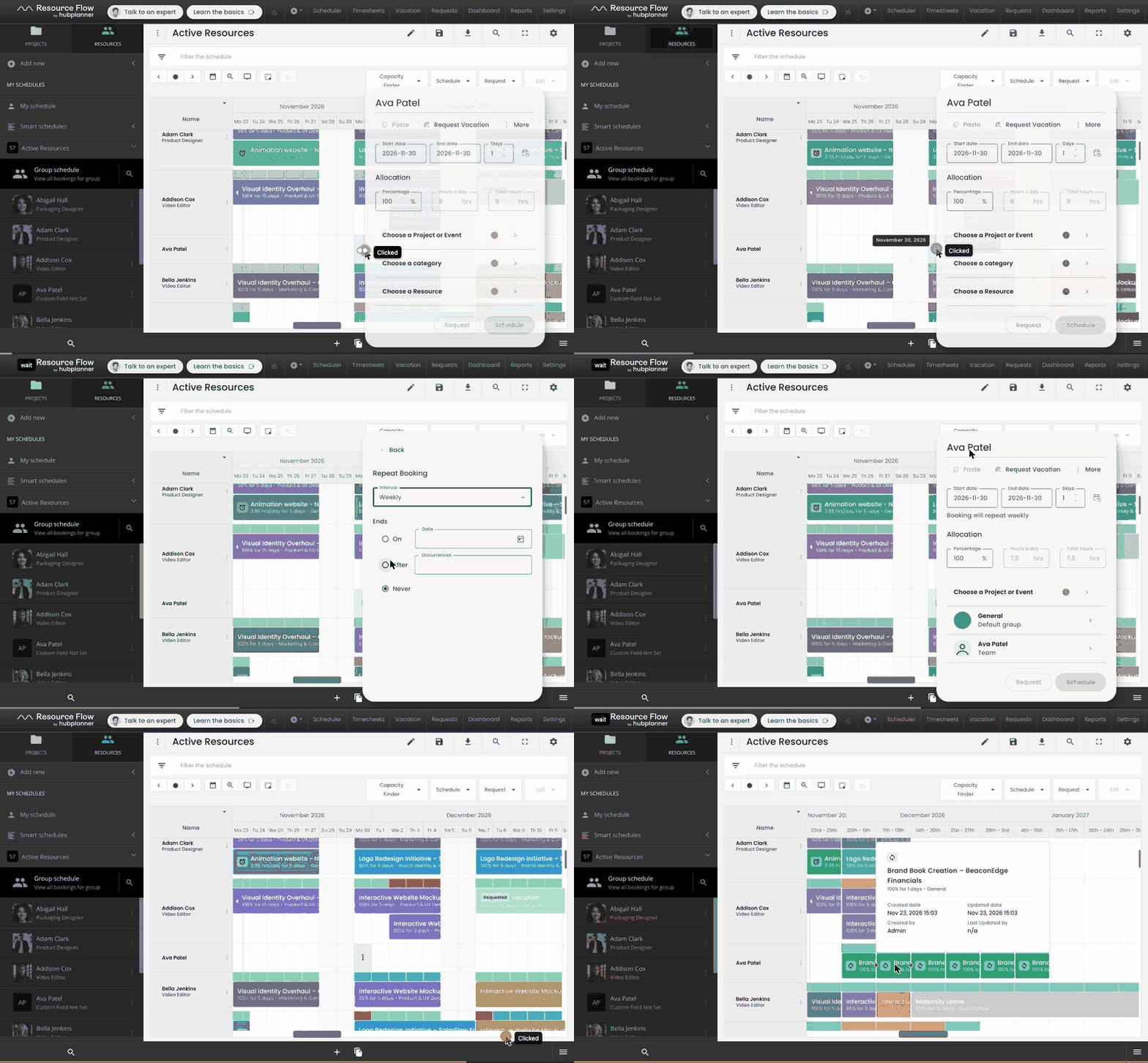
Creating a weekly repeating booking
? Tip: Use a weekly repeat for long engagements. Instead of one long booking, create a booking that repeats weekly. Each week can then be edited on its own, for example raising one week from 50% to 70% without touching the rest.
? Tip: Team meetings. Create a 1-hour weekly event for one person, then use the booking's ⋮ menu → Assign to all in group to copy it to everyone in the group you're viewing. Large groups can take a moment.
FAQ: What happens when I edit one occurrence?
Resource Flow asks whether to update this booking only or all bookings in the series. Choose this booking only for a one-off change.
Related articles
Was this article helpful?
That’s Great!
Thank you for your feedback
Sorry! We couldn't be helpful
Thank you for your feedback
Feedback sent
We appreciate your effort and will try to fix the article