For: Managers · Time: about 4 minutes
You need: permission to edit bookings
Right-click any booking (or click it) to open its quick-edit panel. From there you can change dates and allocation directly, or click ⋮ for more options.
What's in the ⋮ menu
| Option | What it does |
|---|---|
| Cut / Copy / Duplicate / Delete | Move, copy or remove the booking |
| Edit title | Give the booking its own title. Booking reports show this instead of the project name, which helps identify specific tasks |
| Add deadline | Add a deadline marker (Dependencies & Deadlines extension) |
| Edit Booking | Full editor: dates, repeat, booking category, notes and a custom billing rate for this booking only |
| Edit Project / Edit Resource | Open the project or resource without leaving the scheduler |
| Bulk move | Move many bookings at once (see below) |
| Assign to all in group | Copy the booking to everyone in the group you're viewing |
| Notes | Add a note to the booking |
| Dependencies / Tasks | Link parent and child bookings, or add tasks (extensions) |
| Split | Split the booking into two at a date you choose |
Split a booking
- Right-click the booking and click ⋮.
- Scroll down and click Split.
- Pick the date where the second part should start. The booking becomes two separate bookings.
- To hand part of the work to someone else, drag the second part onto another resource's row.
Bulk move bookings
- Right-click a booking, click ⋮, then Bulk move.
- Under What would you like to move? choose what to move. You can move all of this project's bookings for this person, this project's bookings for everyone, all of this person's bookings, or reassign them to another resource.
- Enter the number of days to move by and choose Forward or Backward.
- Choose Move all bookings or Specify date to move bookings from.
- Click Bulk update.
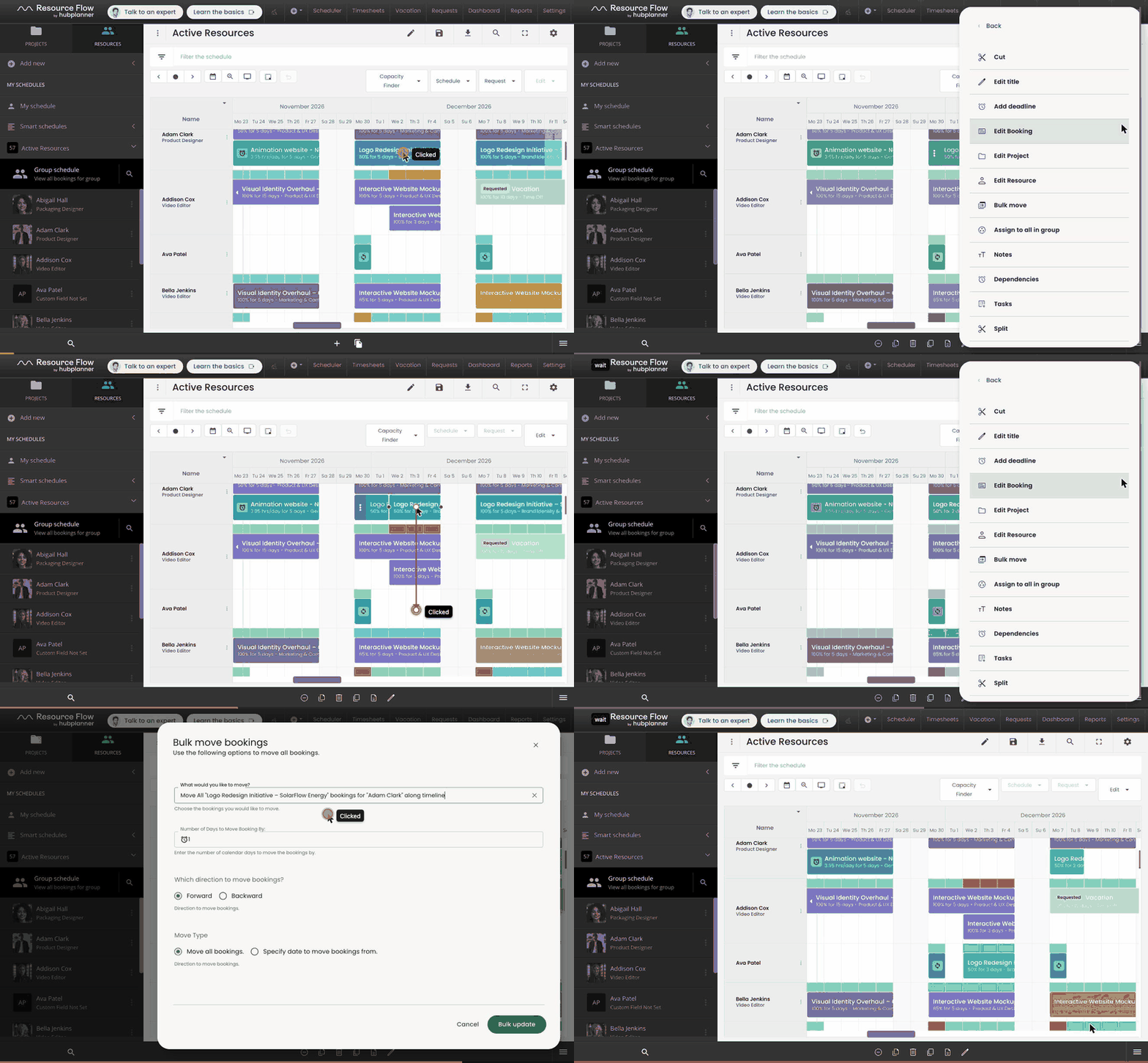
Splitting a booking, reassigning the second half and bulk moving
? Tip: Bulk move counts calendar days, so entering 7 moves everything exactly one week.
? Tip: Made a mistake? Use the undo arrow in the scheduler toolbar straight away.
Related articles
Was this article helpful?
That’s Great!
Thank you for your feedback
Sorry! We couldn't be helpful
Thank you for your feedback
Feedback sent
We appreciate your effort and will try to fix the article