For: Managers · Time: about 4 minutes
You need: the Dependencies & Deadlines extension
The Dependencies & Deadlines extension helps you plan work that has to happen in order, and keep key dates in sight on the scheduler.
Add a deadline
- Right-click a booking and click ⋮.
- Choose Add deadline.
- Enter a Deadline title, such as Client sign-off, and pick the date.
- Press Enter to save. A clock icon appears on the booking and a diamond marks the deadline date.
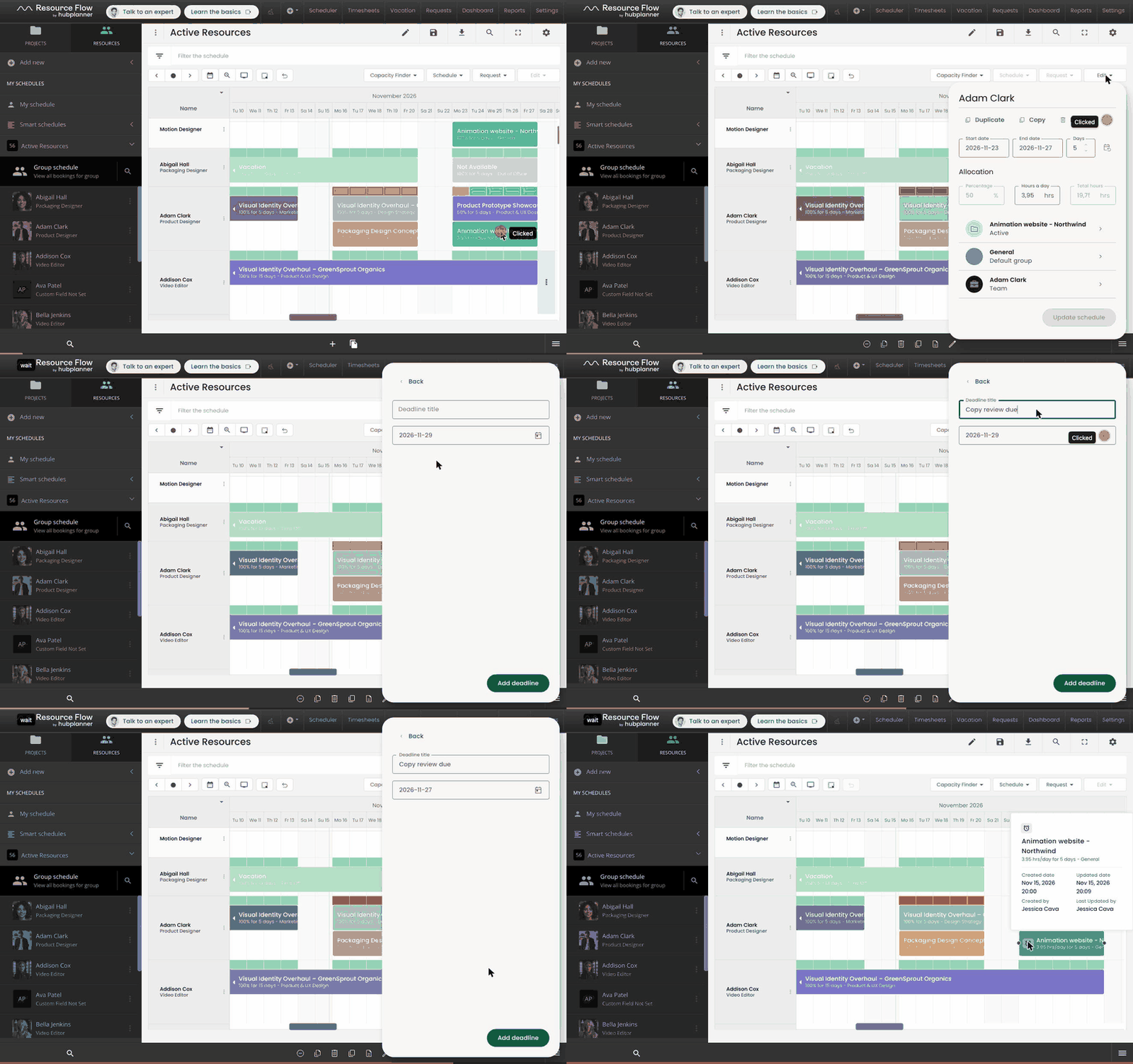
Adding a deadline to a booking
Link bookings with a dependency
A dependency says one booking (the parent) must finish before another (the child) starts. A parent can have as many children as you need.
- Hover over the parent booking until a small dot appears on its edge.
- Drag from the dot onto the child booking and let go. A line links them.
- To see or remove links, double-click a booking and open its Dependencies tab, or right-click the link line.
What happens when plans change
- If the parent's end date moves, the child's start moves with it.
- With Smart moving on, moved bookings skip weekends and non-working days.
- Deleting a booking, project or resource removes its dependencies. Reassigning a booking to another person keeps them.
Change how they look
In Personal Preferences (gear icon), use Dependency Options to choose solid, dashed or dotted lines, colour, and whether lines always show, show on click, or are hidden. Use Deadline Options to choose the diamond and line colour and position.
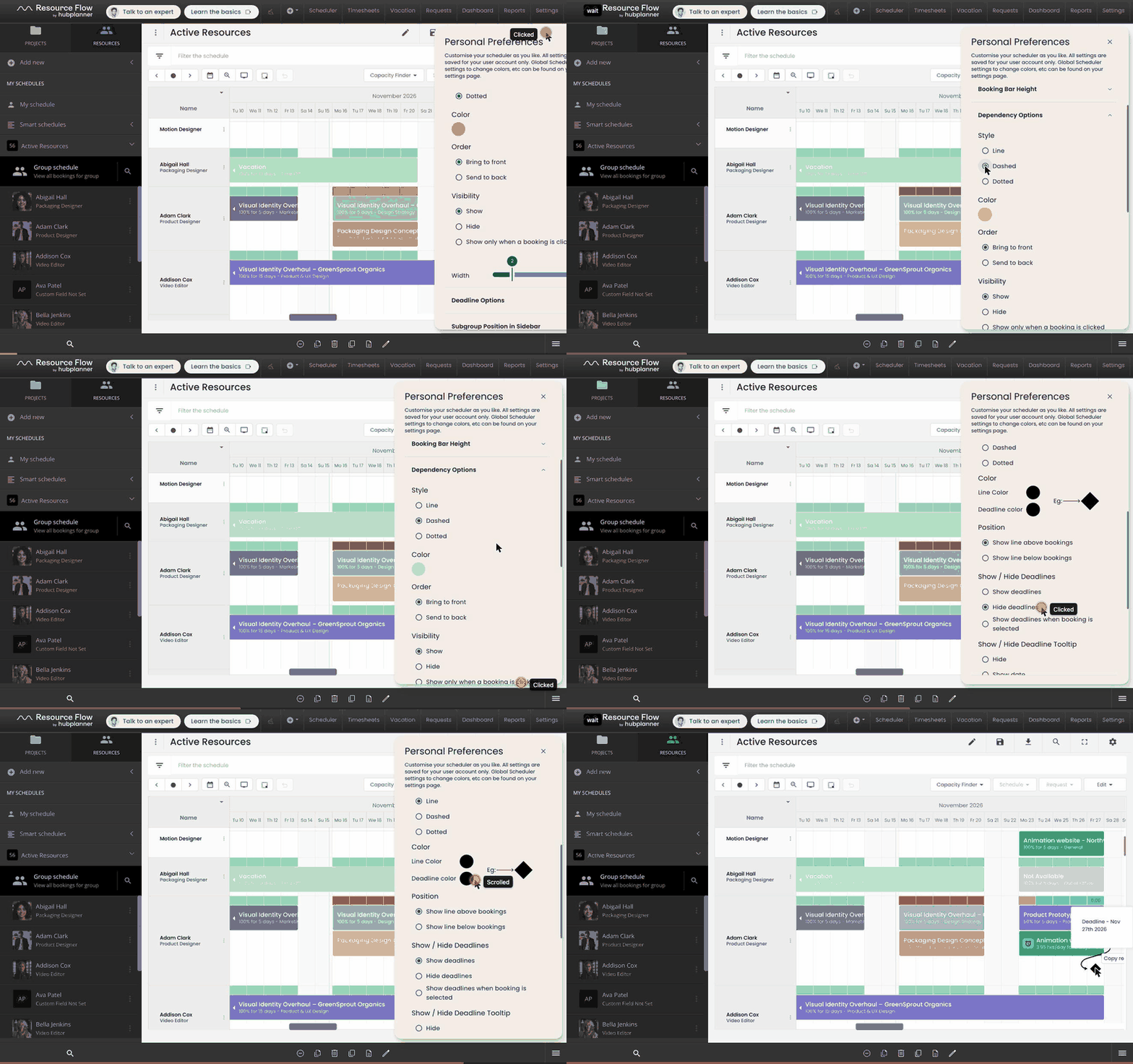
Changing how dependency lines and deadlines display
ℹ️ Note: Dependencies can't be added while you're creating a booking; create both bookings first, then link them.
Related articles
Was this article helpful?
That’s Great!
Thank you for your feedback
Sorry! We couldn't be helpful
Thank you for your feedback
Feedback sent
We appreciate your effort and will try to fix the article