For: Admins · Time: about 3 minutes
You need: admin access
A resource is anyone (or anything) you schedule: a team member, a contractor, or equipment such as a meeting room. You can add one in seconds from the scheduler and fill in the details later.
Add a resource
- Click the + (Add new) button in the top bar and choose New resource. You can also use Add new in the sidebar or the last button on the scheduler toolbar.
- Enter a First Name and Last Name.
- Enter their Email if they need to log in. Tick Automatically Invite User when Added to send the welcome email now, or leave it and invite them later.
- Tick Make Project Manager or Make an Approver if they'll manage projects or approve requests.
- Choose a Resource Role (what they can do) and Resource Status (whether they can be booked). See Resource roles and statuses explained.
- Optionally add Tags, then click Add New. Their schedule opens, ready to book.
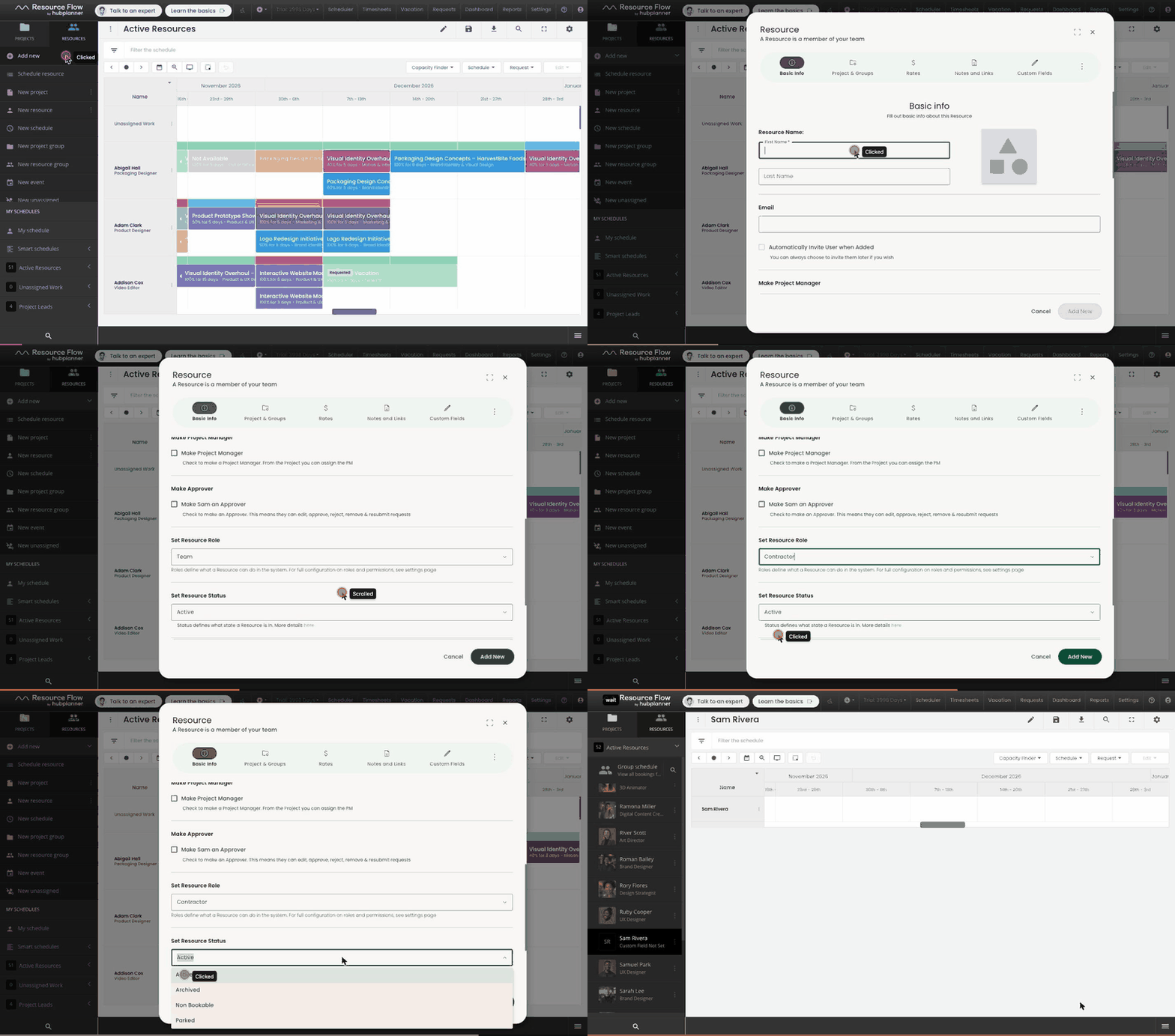
Adding a new resource with a role and status
Edit a resource
Open the resource's schedule and click the pencil icon, or use the ⋮ menu next to their name and choose Edit. The resource window has these tabs:
| Tab | What you set there |
|---|---|
| Basic info | Name, email, photo, PM and approver flags, role, status and tags |
| Project & Groups | The projects and resource groups they belong to |
| Rates | External and internal rates, and whether they're non-billable |
| Notes and Links | Notes plus links such as a CV or portfolio |
| Custom Fields | Your own fields, such as location or skills |
| ⋮ → Resource Availability | Company availability, or custom days and hours for part-timers. Also their public holiday calendar |
| ⋮ → Vacation & Toil | Their vacation allowance, carry-over and time off in lieu |
Click Update to save.
? Tip: To invite someone you added without an email, edit them, add the email, and send the invite from Settings → Manage Resources (envelope icon).
Related articles
Was this article helpful?
That’s Great!
Thank you for your feedback
Sorry! We couldn't be helpful
Thank you for your feedback
Feedback sent
We appreciate your effort and will try to fix the article