For: Admins · Time: about 3 minutes
You need: admin access
Every resource has a role, which controls what they can see and do, and a status, which controls whether they can be booked. Both are set on the Basic info tab of the resource window.
Roles
| Role | Typically used for |
|---|---|
| Admin | People who manage settings, billing and everyone's data |
| Account Handler 1 | Senior managers who schedule and report across the team |
| Account Handler 2 | Managers with a narrower set of permissions than Account Handler 1 |
| Team | Team members who view their schedule, log time and request leave |
| Contractor | External people with limited access |
An admin decides exactly what each role can do under Settings → Roles, so permissions in your account may differ from these defaults.
Statuses
| Status | Use it when |
|---|---|
| Active | The person is working and can be booked |
| Archived | They've left, but you want to keep their history for reporting |
| Non Bookable | They need to log in and view schedules but shouldn't be booked, such as an executive |
| Parked | They're not needed for now. Their data stays and they can be reactivated |
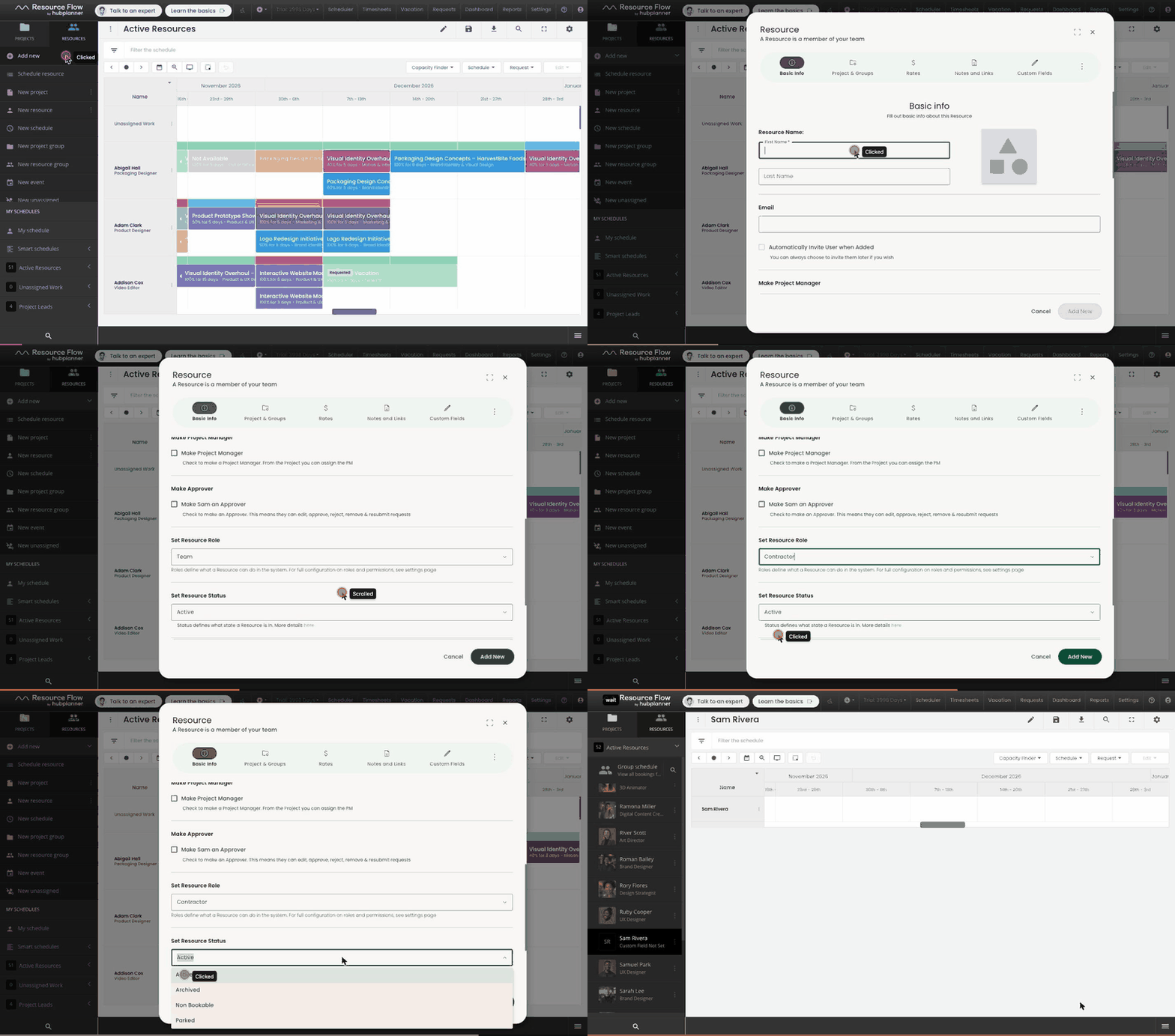
The role and status dropdowns on a resource
? Tip: Park instead of delete. Deleting a resource removes their bookings and time from reports. Parking or archiving keeps your history intact.
ℹ️ Note: Project Manager and Approver are separate ticks, not roles. Anyone can be made a PM or approver, whatever their role.
Related articles
Was this article helpful?
That’s Great!
Thank you for your feedback
Sorry! We couldn't be helpful
Thank you for your feedback
Feedback sent
We appreciate your effort and will try to fix the article