For: Managers · Time: about 3 minutes
You need: the Unassigned Work extension
Sometimes you know work is coming but not who will do it. Unassigned Work lets you book that demand as placeholders, such as Design & UX Demand or Development Demand, so it shows in capacity planning and reports. You can then hand it to a real person.
Add an unassigned row to a schedule
- Open a group or project schedule. The Unassigned Work row sits at the top.
- Click the ⋮ next to Unassigned Work and choose a category, such as Design & UX Demand. It appears as its own row.
- Expand Unassigned Work with the arrow to see your categories.
Book unassigned work
- Drag across the category's row to select the dates and click the selection.
- Set the allocation, choose the project and click Schedule.
Assign it to someone
When you know who will do the work, drag the booking from the unassigned row onto that person's row. Their capacity bar updates straight away.
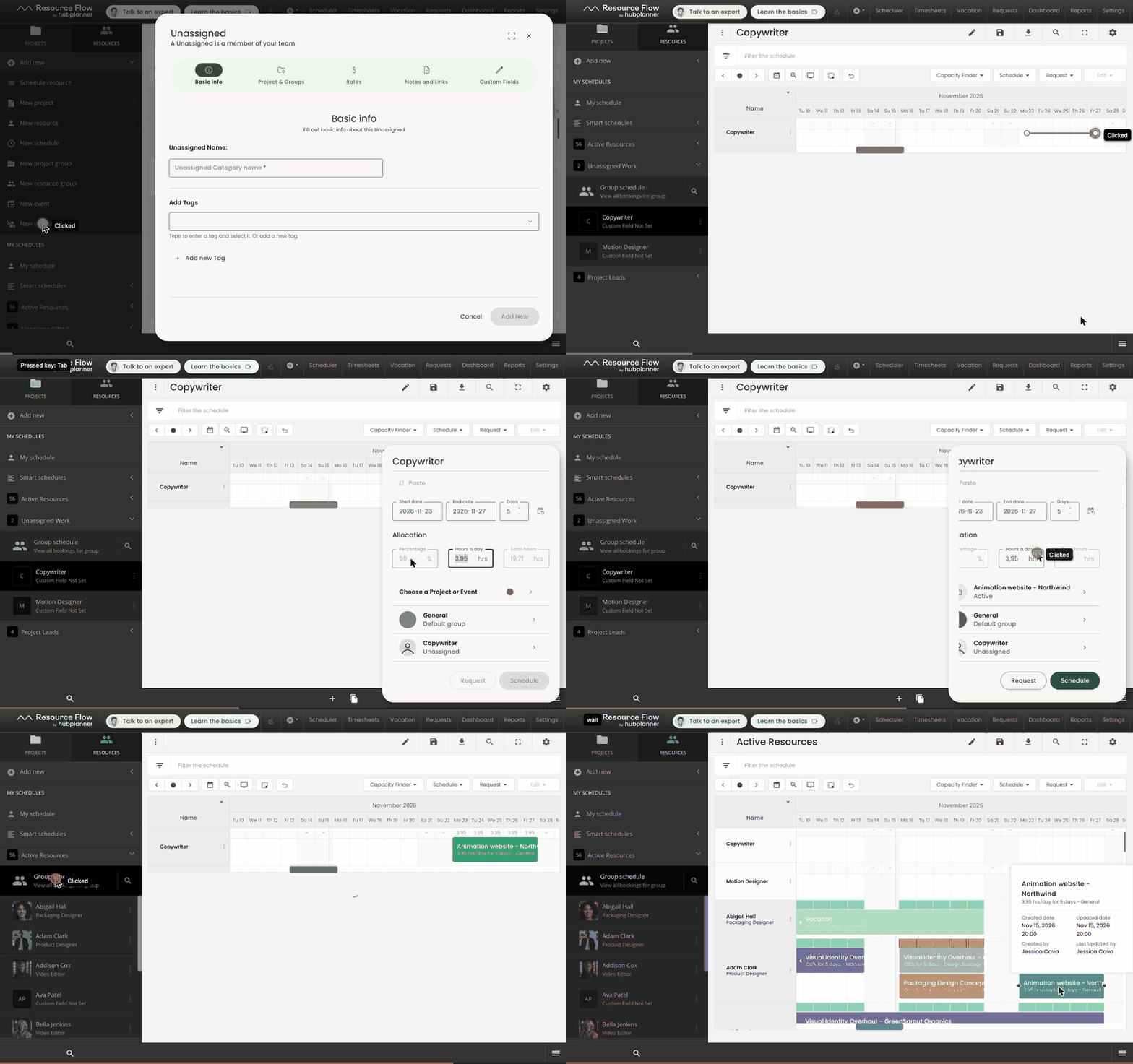
Dragging unassigned demand onto a team member
For admins: set up categories
- Go to Settings → Manage Extensions → Unassigned Work.
- Enter a category name and click Add. Each category uses one unassigned licence; use Add More Licenses if you need more.
- You can also add categories from the scheduler with ⋮ → Add More Categories.
⚠️ Warning: Deleting a category also deletes all of its bookings, and this can't be undone.
? Tip: Report on demand with the Scheduled Time and Booking Categories templates in the Unassigned Work report folder.
Related articles
Was this article helpful?
That’s Great!
Thank you for your feedback
Sorry! We couldn't be helpful
Thank you for your feedback
Feedback sent
We appreciate your effort and will try to fix the article