For: Managers · Time: about 3 minutes
You need: the Capacity Finder extension
Capacity Finder filters the scheduler to show only the people who match how busy or free you need them to be, such as everyone with at least 35 hours free next week or everyone over 100% this month.
Use Capacity Finder
- Open a group schedule, such as Active Resources or one of your teams.
- Click Capacity Finder on the scheduler toolbar. Check that Turn Capacity Finder On/Off is on.
- Choose Utilization % (how full people are) or Available hours (how much time they have free).
- Choose the period: This Week, Next week, This month, Next month or Custom dates.
- Pick a preset or set your own:
- Utilization %: 0%, Under, 100%, Over or Custom.
- Available hours: Available, Booked, Over or Custom.
- With Custom, choose a comparison (Equal, Not equal, Less than, Greater than, Less than or equal, Greater than or equal) and enter the value, or drag the slider.
- Click Update Scheduler. Only matching people stay on the schedule, and the filter shows at the top.
Clear the filter with the × at the right of the filter bar.
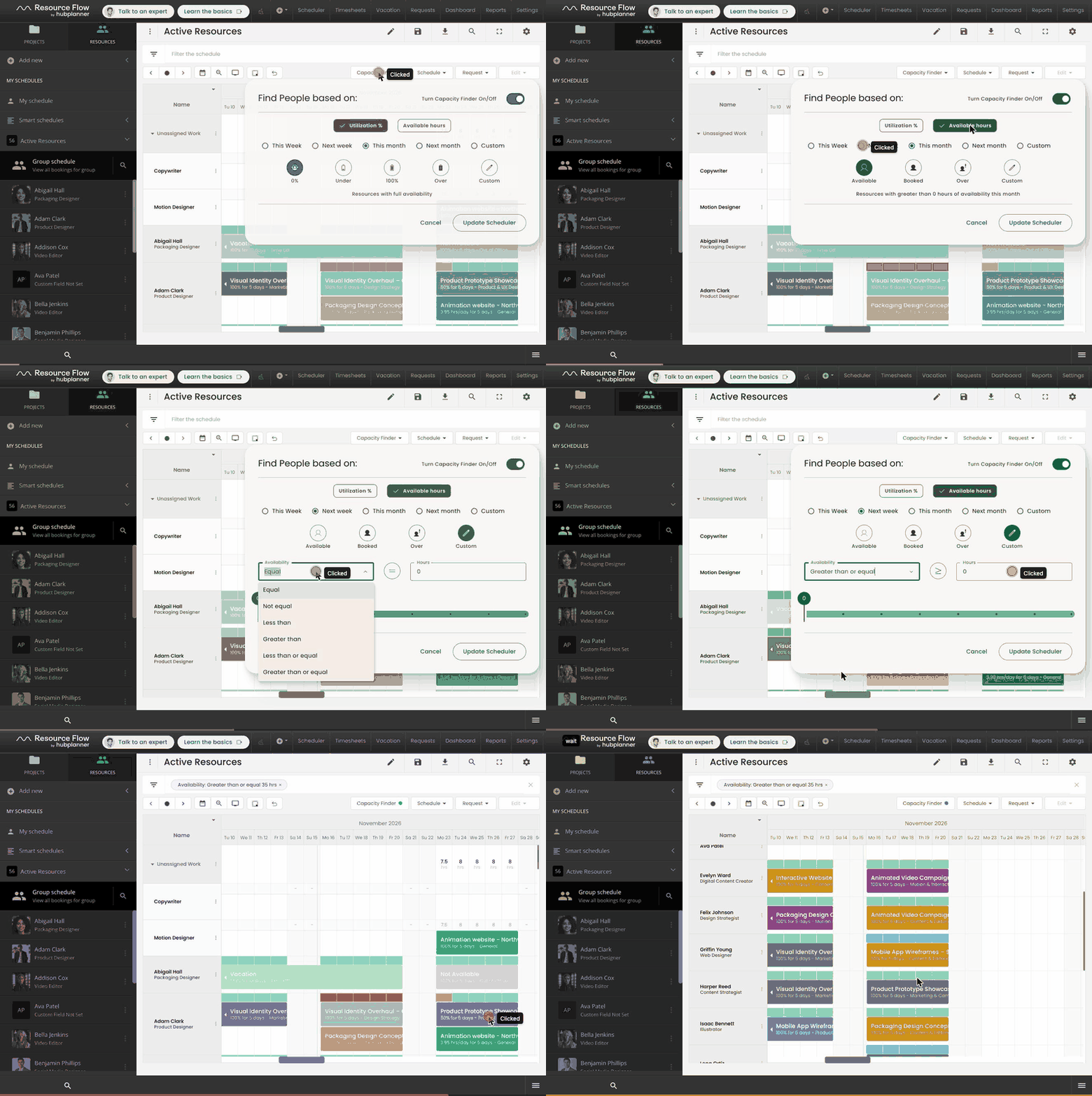
Finding everyone with 35 hours free next week
? Tip: Combine with skills. Add a custom field filter, such as Skill = Photoshop and Location = New York, alongside Capacity Finder to find exactly the right person who's free.
? Tip: Save the result as a smart group (save icon) to reuse it. Ready-made templates include Available Resources, Fully Booked Resources, Over Utilized Resources and Under Utilized Resources.
Related articles
Was this article helpful?
That’s Great!
Thank you for your feedback
Sorry! We couldn't be helpful
Thank you for your feedback
Feedback sent
We appreciate your effort and will try to fix the article