For: Admins · Time: about 5 minutes
You need: admin access
Availability sets how many hours each person can be booked. Set company hours once, then give individuals their own hours if they work differently, for example part-time.
Set company working hours (global availability)
- Go to Settings → System Settings → Account Settings.
- Under Weekdays, set the start and end time for each day. Untick a day, such as Saturday, to make it non-working.
- To add a break, click Add interval and set a second time range, for example 9.00–12.00 and 13.00–17.00. The day's total updates automatically.
- Click Save.
Set one person's hours (custom availability)
- Open the person's profile: find them in the scheduler and click the pencil, or open them from Settings → Manage Resources.
- Click the more menu (⋮) on the tabs and choose Resource Availability.
- Select Use Custom Availability and set their hours for each day, for example Friday 8.00–12.00 for a half day.
- To change a single day or week, such as a training day, click Add custom availability override.
- Check their Public Holiday Calendars, then click Update.
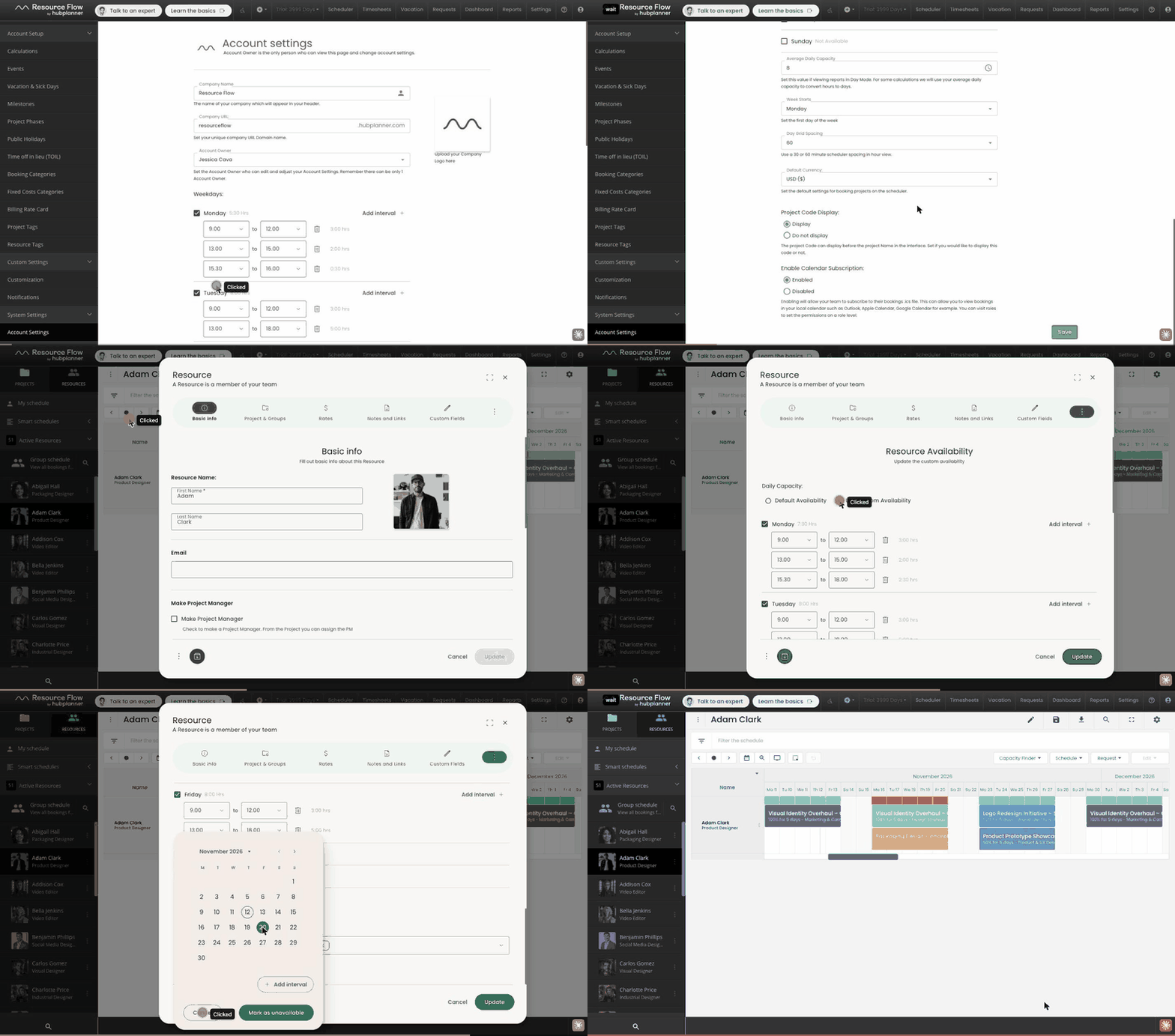
Setting company hours with a break, then one person's custom hours
? Tip: Custom availability changes a person's capacity everywhere: on the capacity bar, in Capacity Finder and in utilisation reports.
Related articles
Was this article helpful?
That’s Great!
Thank you for your feedback
Sorry! We couldn't be helpful
Thank you for your feedback
Feedback sent
We appreciate your effort and will try to fix the article