For: Managers · Time: about 5 minutes
You need: a project and access to the Billing tab
Add rates and a budget to a project to see what it's costing and how much budget is left, using both scheduled and reported time.
Set a project budget
- Open the project: click its name in the sidebar and use the pencil icon, or right-click one of its bookings and choose ⋮ → Edit Project.
- Open the Billing tab.
- Under Budget, choose a category, the currency, and enter an amount, hours or days. Hours and days convert automatically.
- Click add budget category to split the budget, for example Design and Build, so each draws down separately.
- Tick Non-billable Project if the work isn't charged to a client. Its spend then won't count in billable reports.
Set rates
- External Project Rates are what you charge. Pick an External Project Hourly Rate from your rate list, or click Add new rate. It applies to everyone on the project without their own rate.
- Custom external Resources Rates override the project rate for specific people on this project only.
- Internal Project Rates are your cost. Comparing external and internal rates shows your margin.
- Each person can also have default rates on the Rates tab of their resource window.
Add fixed costs
On the Fixed cost tab, click add new fixed cost for one-off costs such as materials or licences. Tick the option to subtract them from the project budget. Click Update to save.
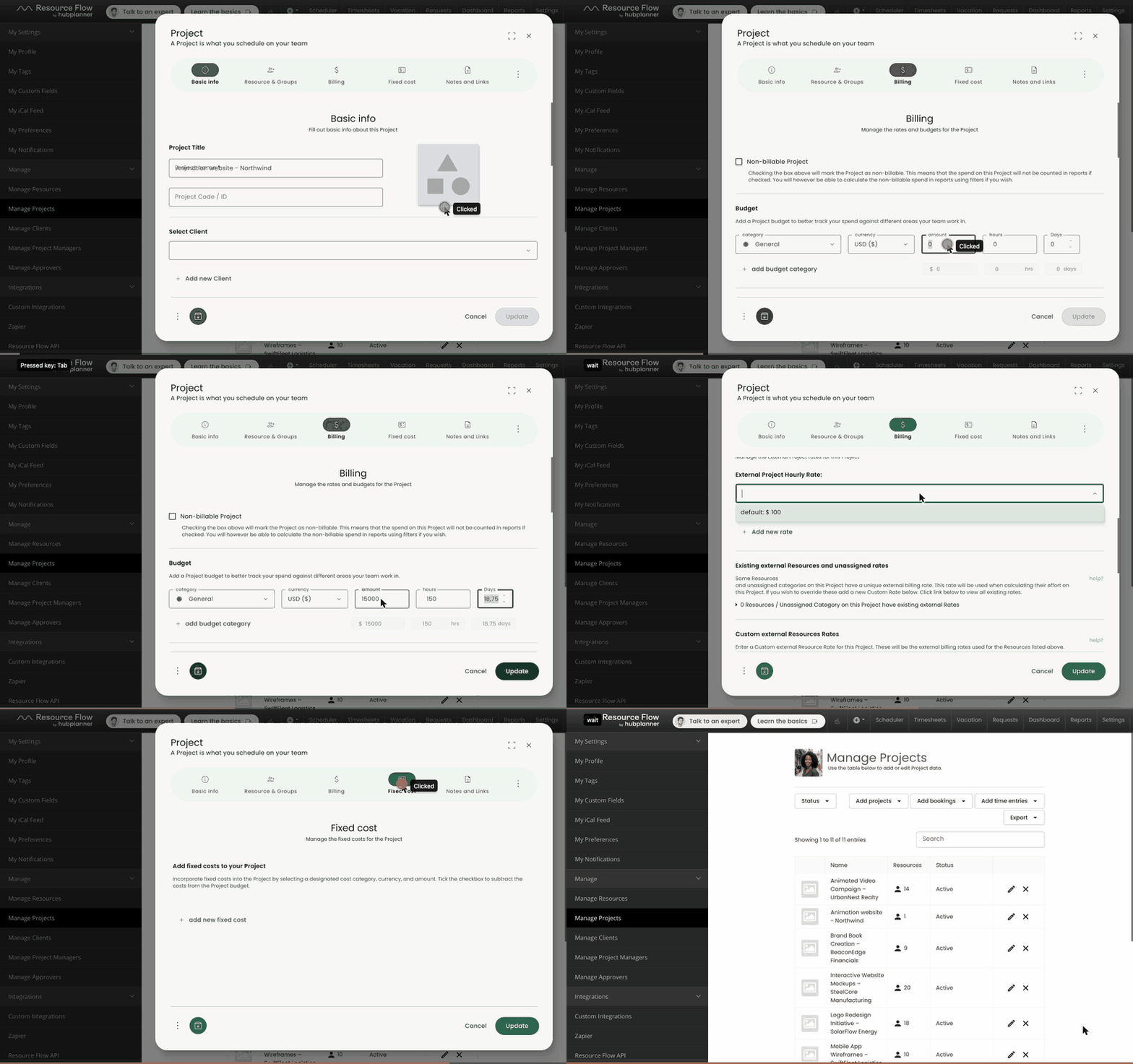
Setting a budget, a rate and a fixed cost
See spend against budget
- On the scheduler, open the project and use the Financials panel to see scheduled and reported time, spend at external and internal rates, and remaining budget.
- In Reports, build a project report with budget, burn and spend columns.
? Tip: Rates are kept with their start dates, so adding a new rate when prices change won't rewrite the history of past work.
ℹ️ Note: Billing rates and budgets may depend on your plan. Check with your account manager if you can't see the Billing tab.
Related articles
Was this article helpful?
That’s Great!
Thank you for your feedback
Sorry! We couldn't be helpful
Thank you for your feedback
Feedback sent
We appreciate your effort and will try to fix the article