For: Admins · Time: about 20 minutes
You need: admin access and your data in CSV or Excel
Moving from spreadsheets or another tool? Import your data in this order: resources, then projects, then bookings, because bookings need the people and projects to exist first.
1. Import resources
Go to Settings → Manage → Manage Resources → Add multiple. Paste or upload a CSV with First name, Last name and Email. See Add and invite resources in bulk (CSV).
2. Import projects
- Go to Settings → Manage → Manage Projects → Add Multiple Projects. You can also use Add new → ⋮ next to New project → Bulk Add Projects in the scheduler sidebar.
- Paste comma-separated data (one project per line) or upload a .csv or Excel file. A template is available to download.
- Click Continue, match each column to a field, then click Import.
| Column | Notes |
|---|---|
| Name | Required and must be unique |
| Project Code | Used to update an existing project instead of creating a new one |
| Group | An existing or new project group; new groups are created for you |
| Status | active (default), archived, pending, planned or floating |
| Budget | Hours or cash, with the matching budget field |
| Default Rate | TRUE uses your account rate; FALSE lets you set a custom one |
| Start / End | Dates as YYYY-MM-DD |
| Note, Links 1–5 | Optional notes and links |
| Sunday–Saturday | TRUE or FALSE for working days; blank uses your account defaults |
3. Import bookings
- Go to Settings → Manage Projects → Add Bookings and click Download CSV Template.
- Click Upload Multiple Bookings, then Download All Resources and Download All Projects to get the IDs you'll need.
- Fill in one row per booking (columns below).
- Upload the file.
| Column | Notes |
|---|---|
| event_id | Leave blank for a new booking, or enter an ID to update one |
| event_start / event_end | Dates as mm/dd/yyyy |
| event_resource | The resource ID |
| event_project | The project ID |
| event_state | HOURS_DAY, TOTAL_HOURS or PERCENTAGE |
| event_state_value | Minutes per day, total minutes, or the percentage. Blank means a full day |
| event_note | Optional note |
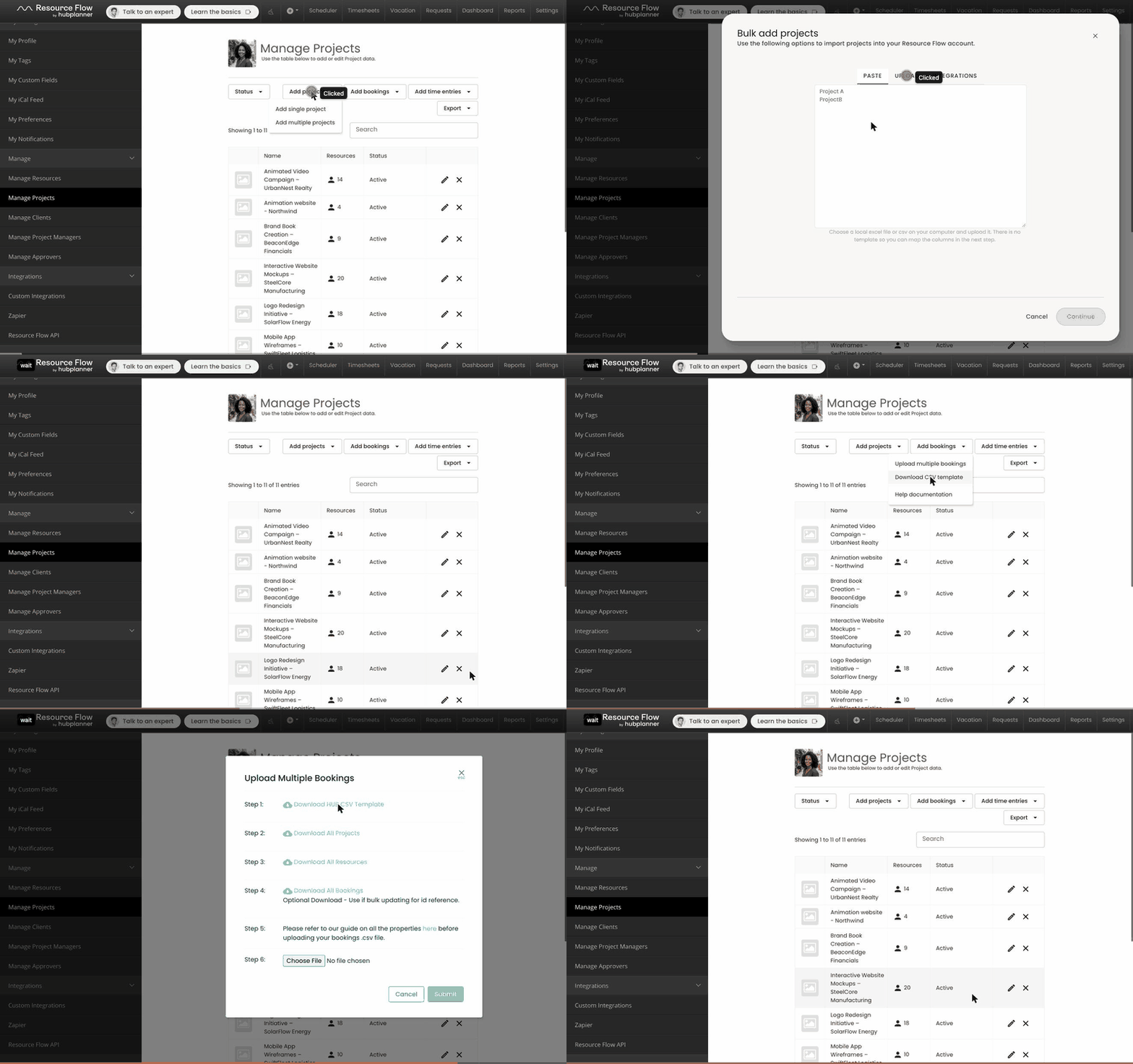
Importing projects and bookings from CSV
⚠️ Warning: Check the dates' format carefully: projects use YYYY-MM-DD and bookings use mm/dd/yyyy.
? Tip: To change lots of existing bookings at once, use Download All Bookings, edit the rows (keeping each event_id) and upload them again.
ℹ️ Note: For large migrations, ask your account manager. Our team can help import your data.
Related articles
Was this article helpful?
That’s Great!
Thank you for your feedback
Sorry! We couldn't be helpful
Thank you for your feedback
Feedback sent
We appreciate your effort and will try to fix the article