For: Managers · Time: about 2 minutes
You need: permission to edit bookings
A booking schedules a person on a project or event for a set of dates.
Create the booking
- On the scheduler, find the person's row and click and drag across the dates you want. A tooltip shows the start and end dates.
- Click the three dots at the end of the highlighted area to open the booking panel.
- Check the start date, end date or number of days. Non-working days are skipped automatically.
- Set the allocation in one of three ways: a percentage (e.g. 50%), hours a day (e.g. 4), or total hours. The other two update to match.
- Choose the project or event, and the booking category if it isn't already set.
- Click Schedule. The booking appears on the person's row.
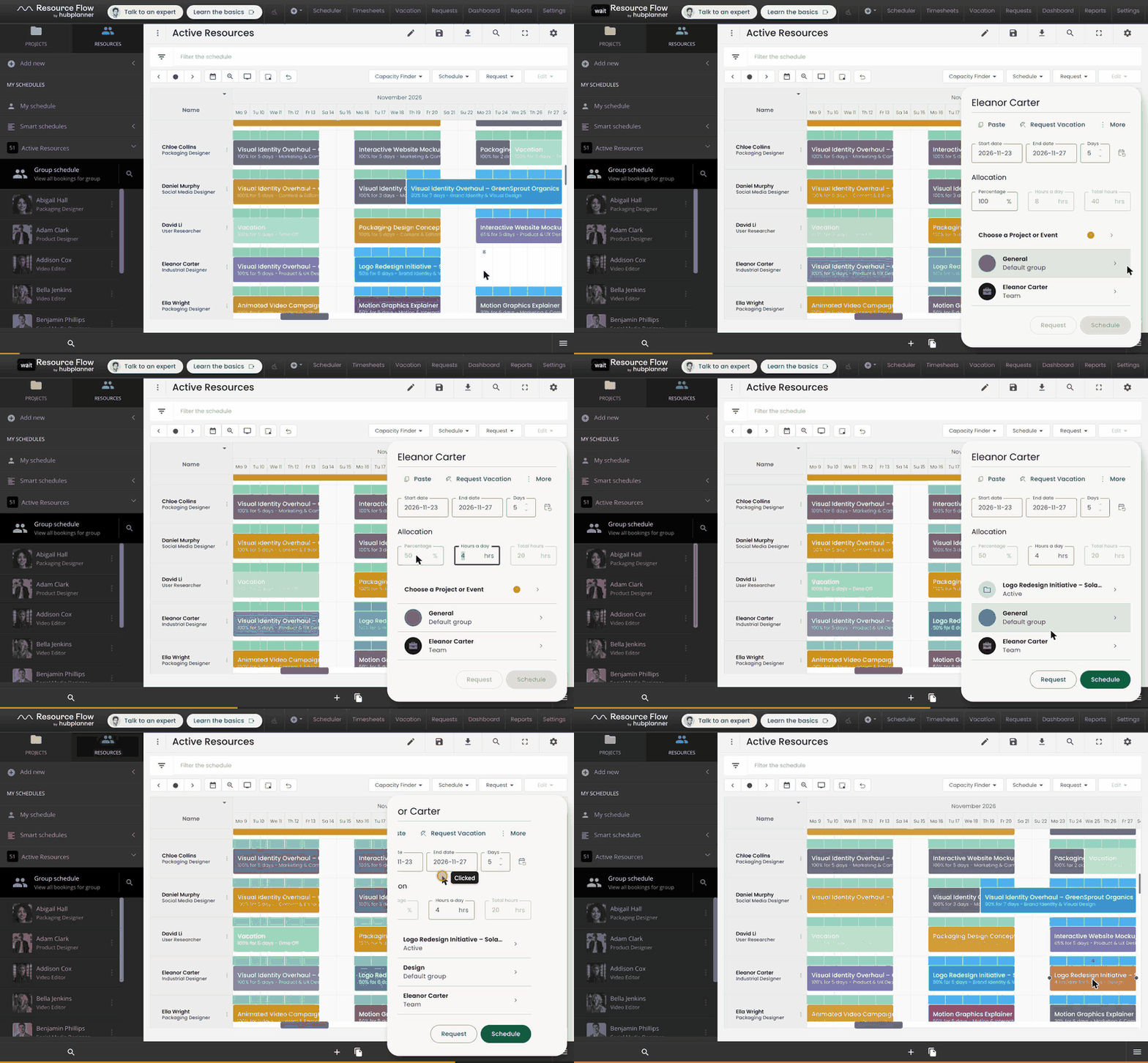
Dragging across dates, setting the allocation and scheduling
Other ways to open the booking panel
- Add new → Schedule resource in the sidebar.
- The + button in the bar at the bottom of the scheduler.
? Tip: Booking from inside a project's own schedule fills in the project for you.
? Tip: For a long piece of work, use a weekly repeating booking instead of one long bar. Then you can change each week on its own, for example 50% one week and 70% the next.
Related articles
Was this article helpful?
That’s Great!
Thank you for your feedback
Sorry! We couldn't be helpful
Thank you for your feedback
Feedback sent
We appreciate your effort and will try to fix the article